CR Tasks - Selections by To & From Locations Reports
The CR Tasks - selections by To Locations and selections by From Locations reports can be useful to a Burials team or team that places cremated remains.
Perhaps you are moving cremated remains from one storage location, such as the crematorium to another storage location, such as a memorial wall.
You can generate the selections by From Locations report to find all tasks to remove cremated remains from a storage location or generate the selections by To Locations report to find pending tasks to place cremated remains in a central location.
To generate, choose the blue arrow in line with the appropriate report.
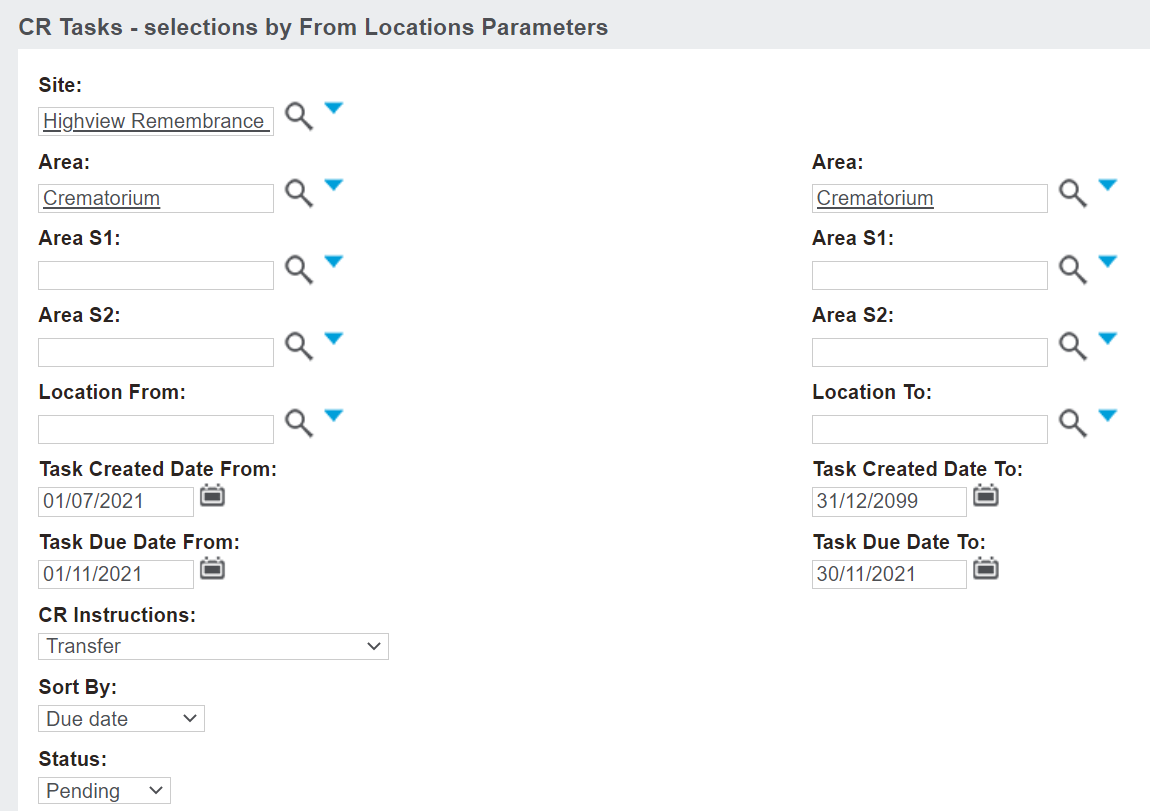
From the pop-up window which displays, complete the fields to narrow down the records which will display on the report.
For our example, we will choose the Site of Highview Remembrance Park.
You can narrow down the search via the
-
Area
-
Sub-area 1
-
Sub-area 2
-
Location From / Location ToSelect the date range for when tasks were created and when tasks are due to expire in the Task Created Date From / To and Task Due Date From / To fields. It may be useful to change the task created date from today to a date further back, otherwise, your search will bring up tasks only created from today onwards.Select cremated remains records with specific CR instructions on the record, for example, if you were looking for CRs that were scheduled to be scattered.
Determine how the data is organised in the Sort By fields.
Options are to have data sorted by:
-
Date
-
Status
-
Location From / To
-
Due date.In the Status field, determine the status of the tasks which will display on the report.
Once all your search criteria have been entered, press Print to PDF on the right-hand side of the page.
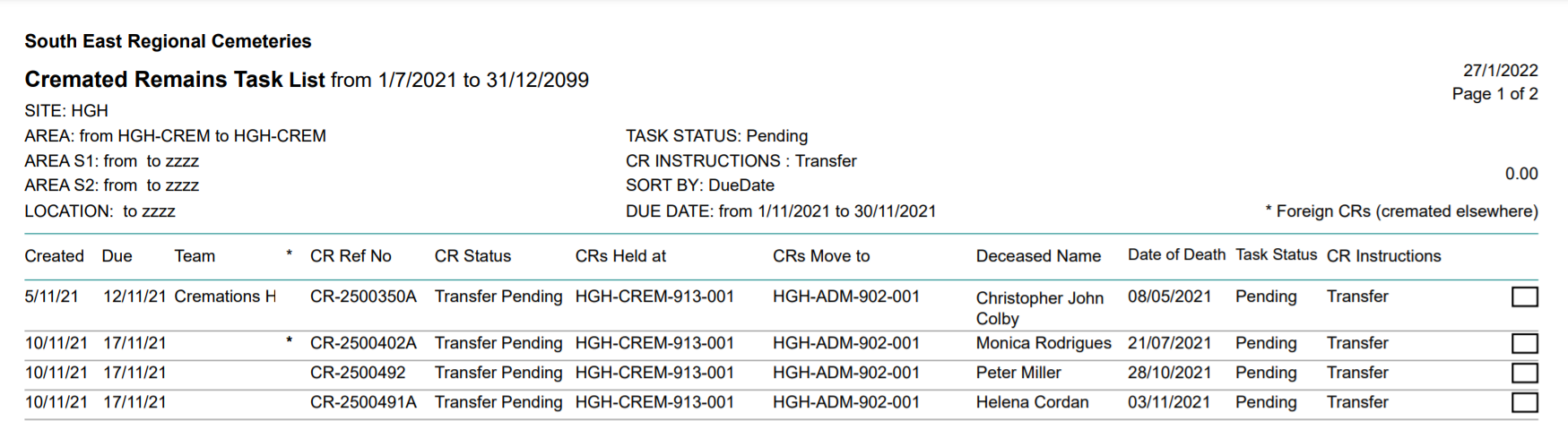
The report will display any tasks which meet the chosen criteria.
You can print off the report, locate the cremated remains and perform the task.
Once the task is performed, you can use the Batch CR Task tool to mark all the tasks as complete in byondpro.