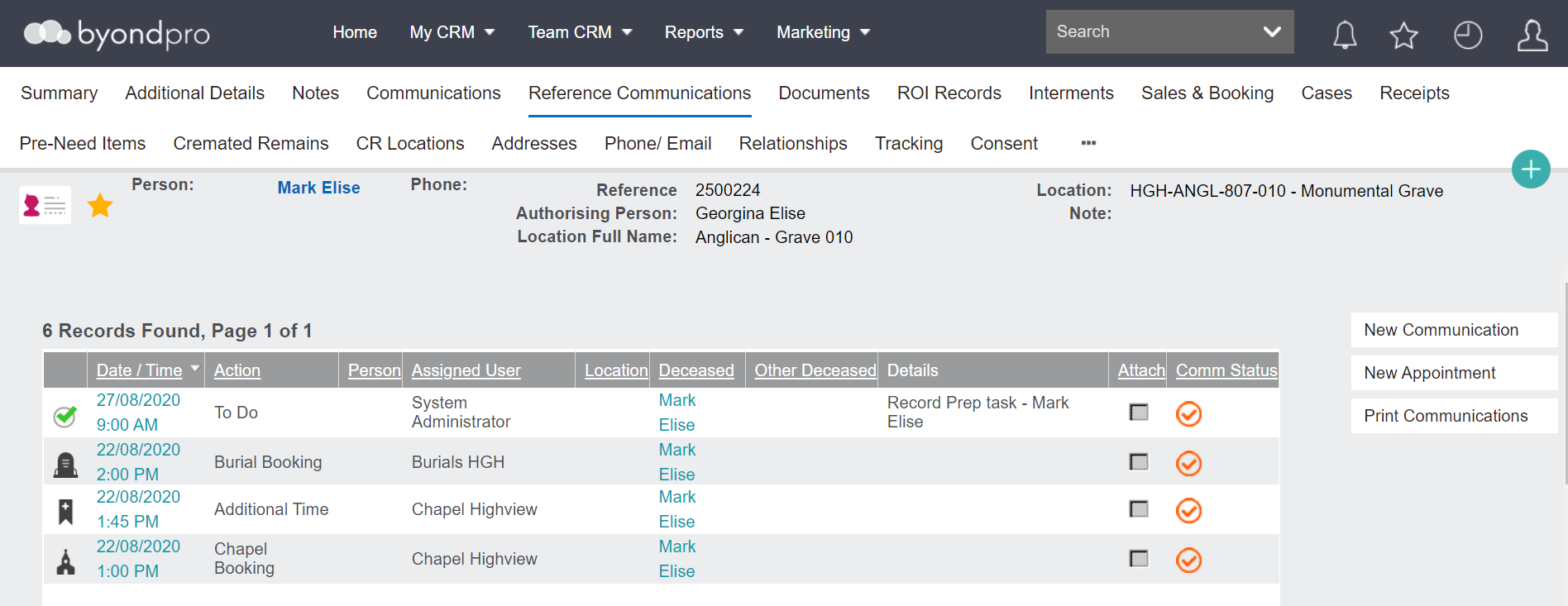
Communications / Reference Communications
These tabs detail a list of communications and appointments family members may have booked or already had with the cemetery.
These communications can be created during the booking processes and if so, are communications associated to the booking contact.
Communications
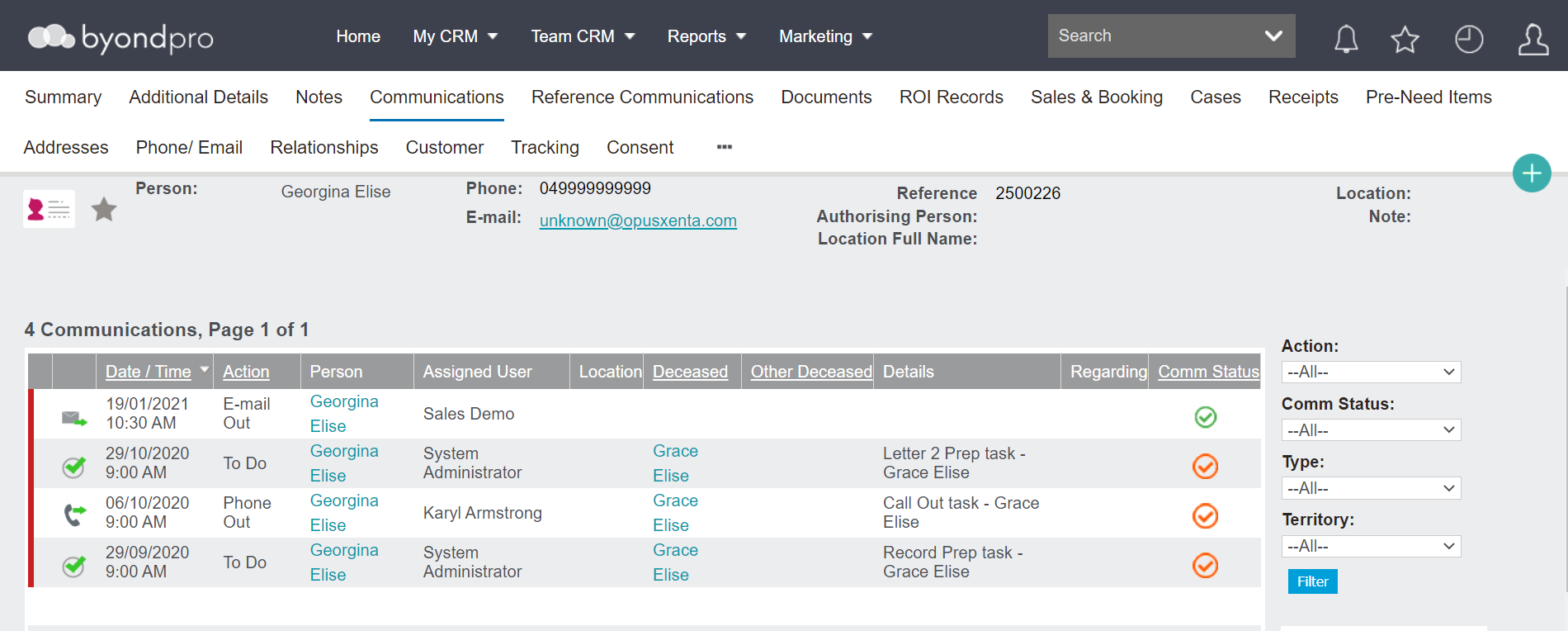
The following information will display for each communication or appointment:
-
Date / Time of creation
-
Action
-
Person linked to the communication
-
Assigned user
-
Location
-
Link to the deceased / reference contact referenced in the communication / appointment
-
Details about the communication / appointment
-
More information in the regarding section
-
Comm Status in icon format
To add a new Communication, click on the New Communication button.

Complete the appropriate fields on the pop-up window which appears.
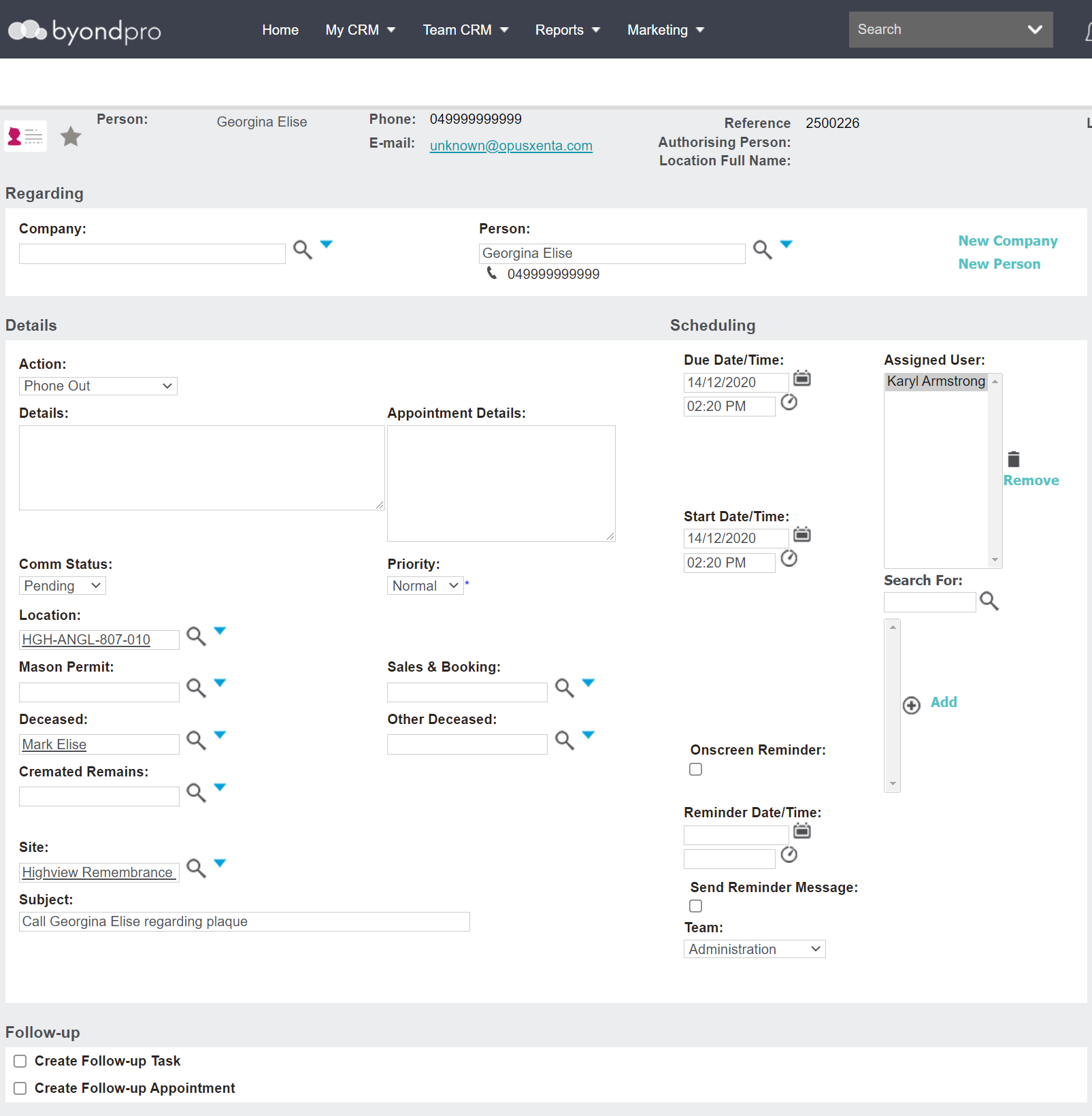
At minimum, you would likely determine the Action, who is performing the action or the Assigned User, and the Start Date/ Time and Due Date /Time if scheduling a future communication.
Once you have entered in all details, click Save on the right-hand side of the page.

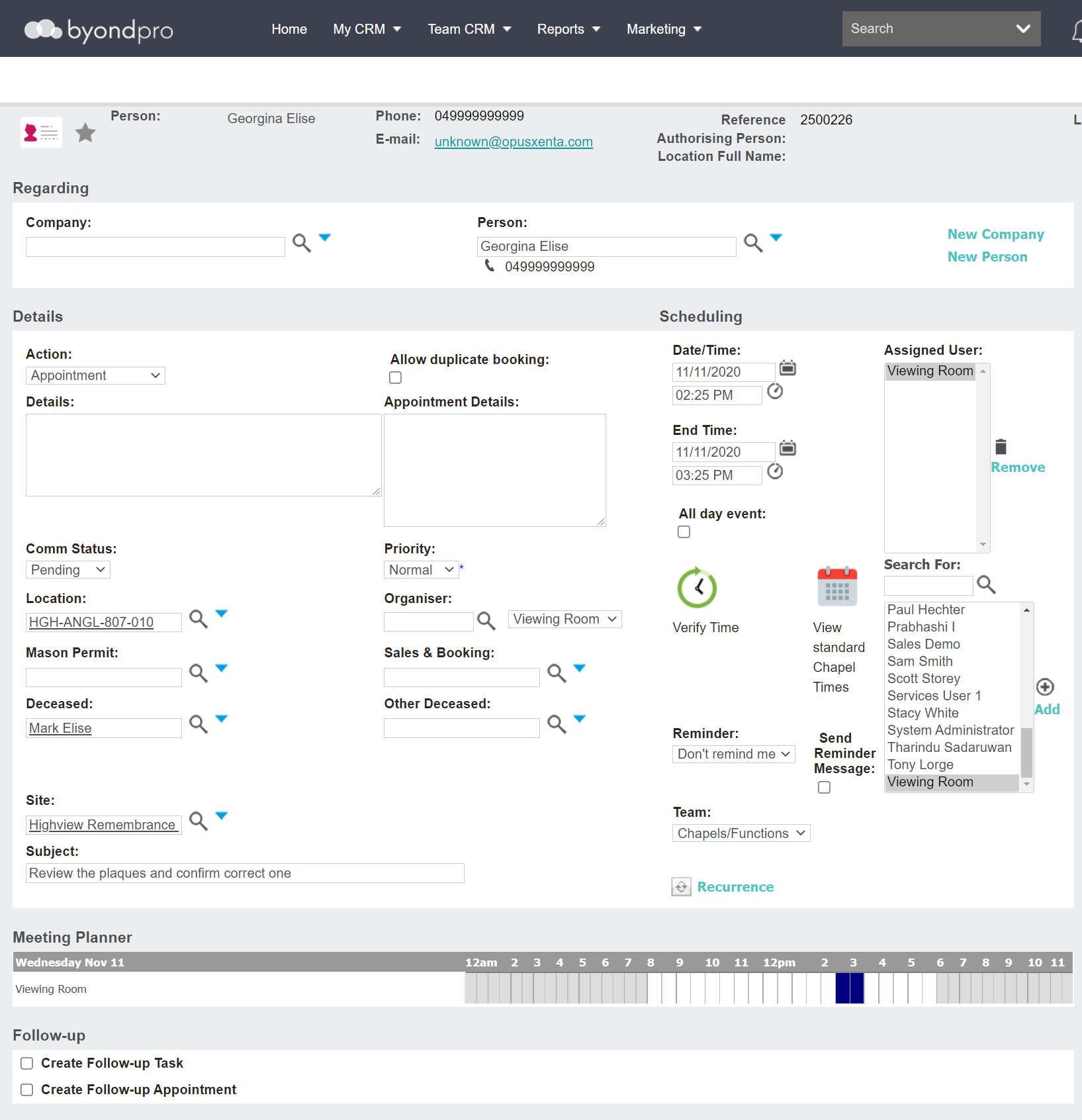
To add a new appointment, click New Appointment.

The pop-up window can be completed in a similar manner.
To add a new email, click on New Email.

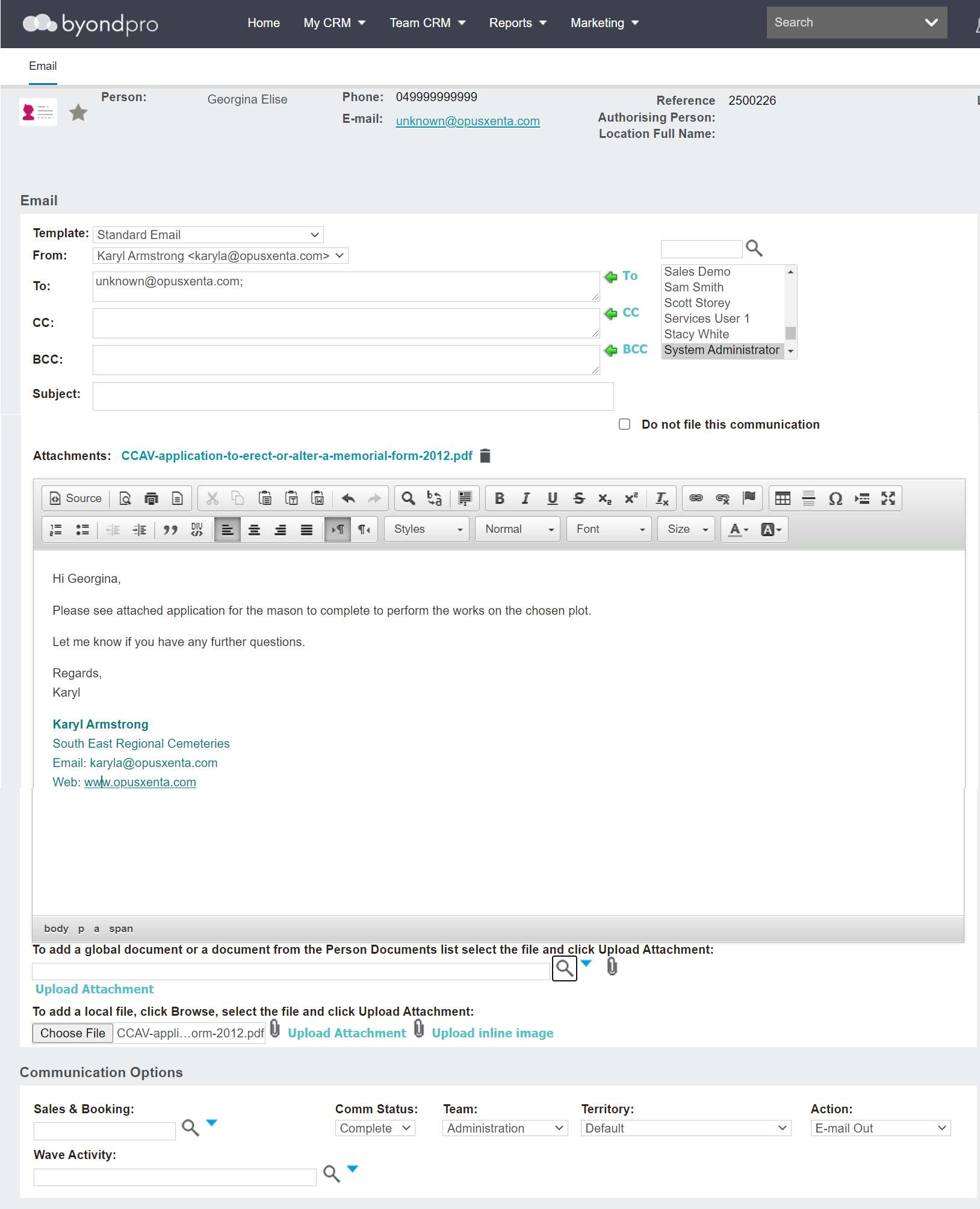
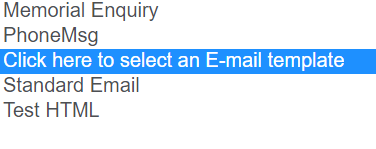
The Template field allows the user to choose from a series of templates added in the system.
Simply select the desired template from the drop-down and it will populate in the email below.
Attachments can also be added to this e-mail.
To send the email once complete, choose Send Email on the right-hand side of the page.

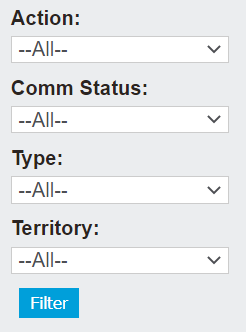
If there were several communications, they can be filtered by the:
-
Action
-
Communication status
-
Type
-
Territory
Reference Communications
This tab holds any communications referring to the person listed as the Reference Contact in a Sales & Booking, most often the deceased record.
The process for adding new communications or appointments, remains the same as above.
These appointments may even be generated during the Sales & Booking process.