Batch Tenure Status Change Tool
The Tenure Status Change tool allows the user to update the Tenure Status and / or Tenure Expiry Date of locations in bulk.
Go to My CRM > Batch Tenure Status Change
You will be taken to a screen that allows you to search for the locations you will be changing.
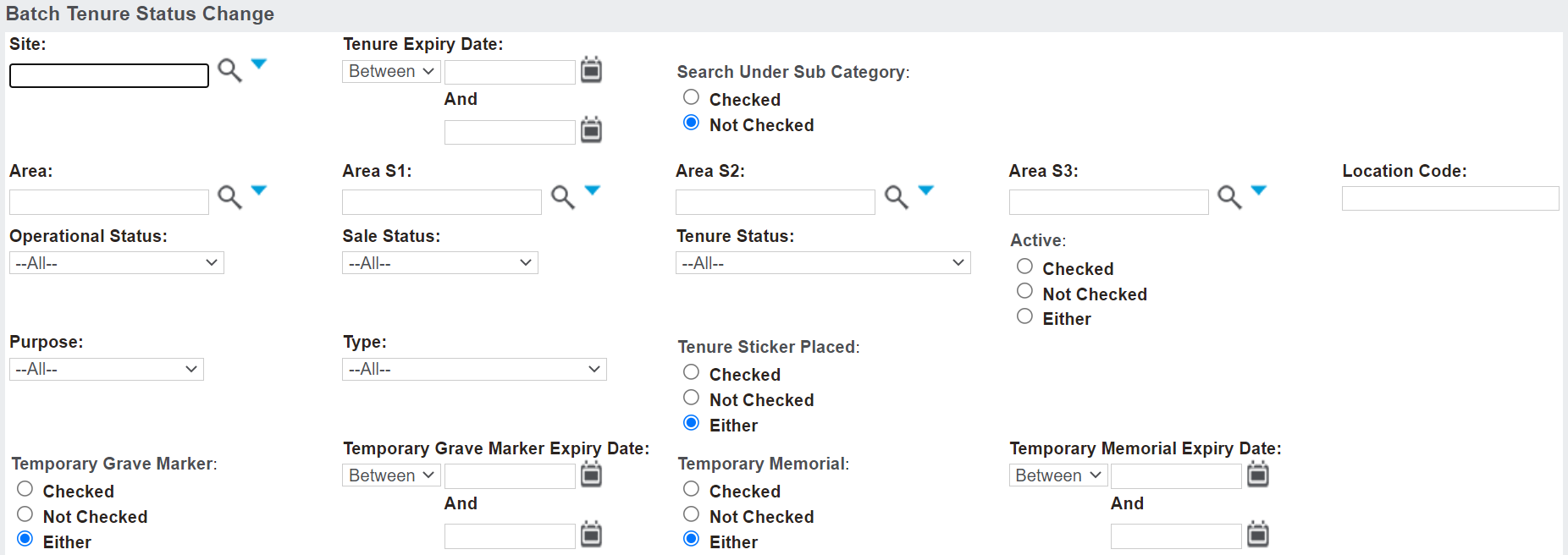
Use the applicable fields to complete your search.
Once the fields are completed, press Find on the right-hand side of the page.

All locations which meet your search criteria will display below.
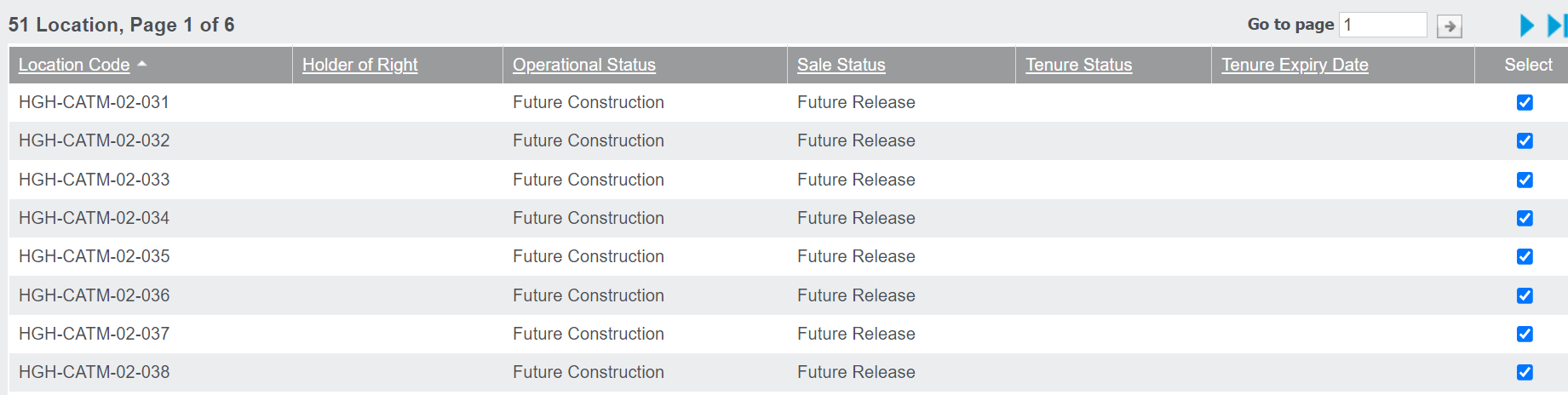
Review the records to determine which records will be included and excluded.
A tick under the Included header, in line with the location record, indicates the locations record will be included on your list.
To exclude a record, simply, untick the record.

Alternatively, use the Include All or Exclude All buttons on the right-hand side of the page to tick or untick all the records in the list.

Once you have confirmed the locations which will be updated, select the fields to update in the Details to Update section.
Select the new Tenure Status and / or the new Tenure Expiry Date for these locations.
In our example, we have chosen to update both to make the tenure for 'Perpetuity' and the expiry date '31/12/9999.'
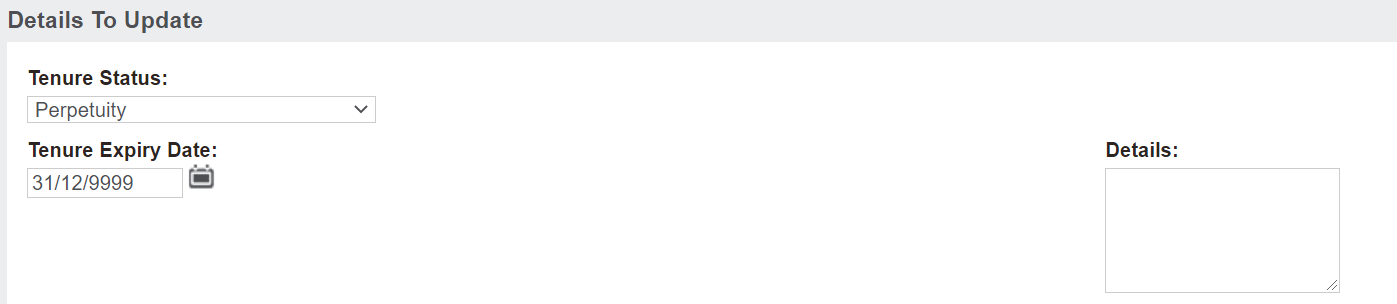
Add information for tracking purposes in the Details text box.
When completed, press Update on the right-hand side of the page.

A pop-up window will display which confirms the fields to be updated and the locations to be updated.
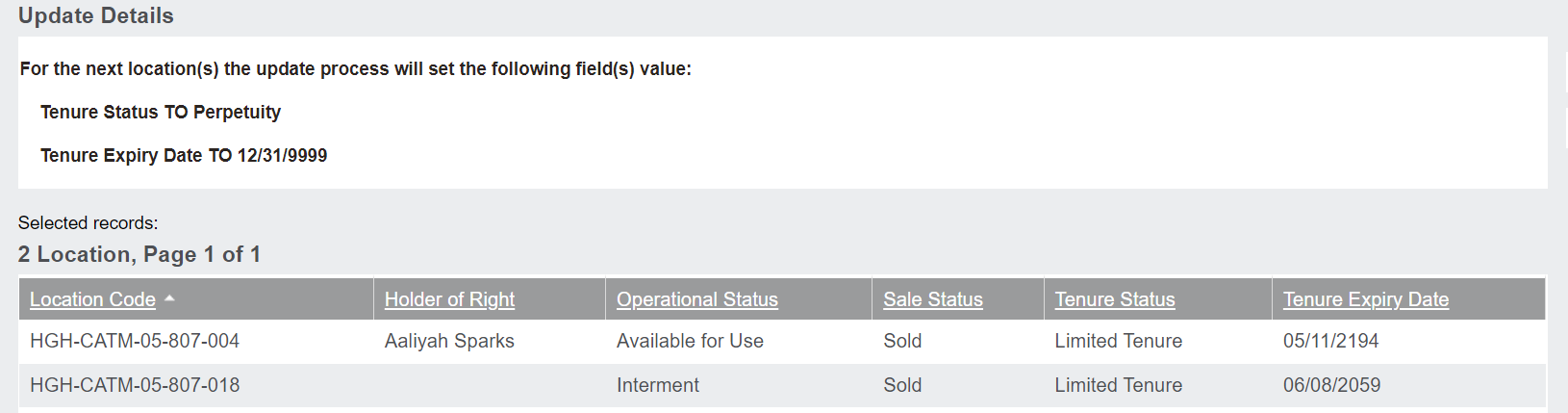
Should no further changes be required, press Confirm Update on the right-hand side of the page.

Once updated, a message will display confirming the update to the locations.

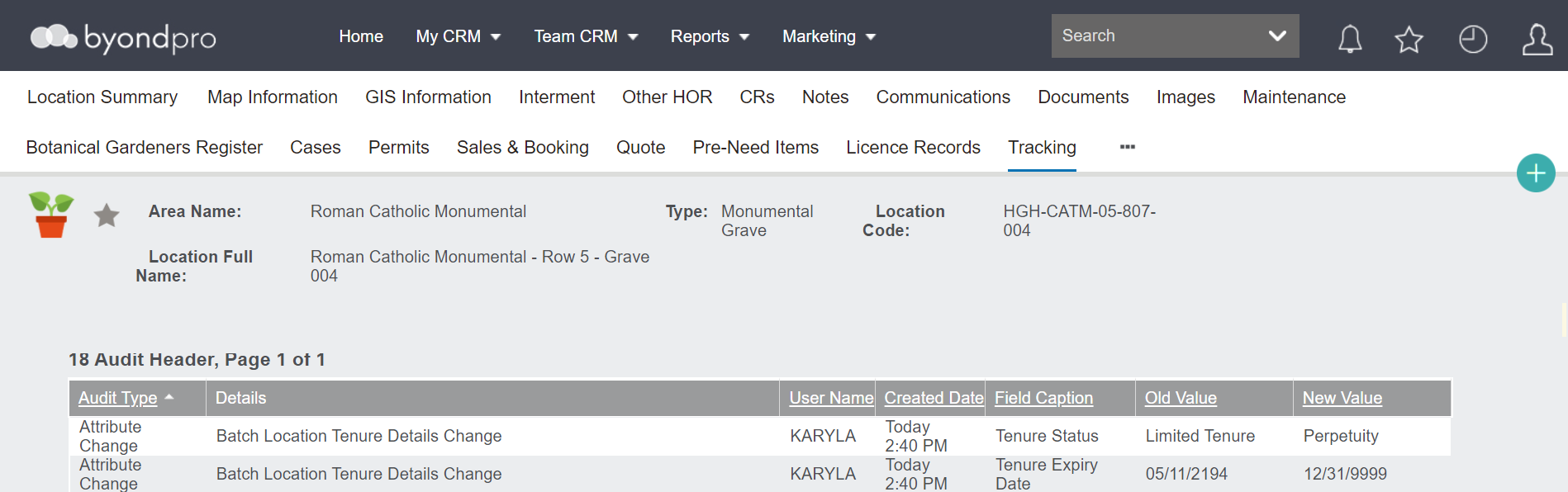
If you were to then visit the individual locations, the selected locations will now have the tenure updated.
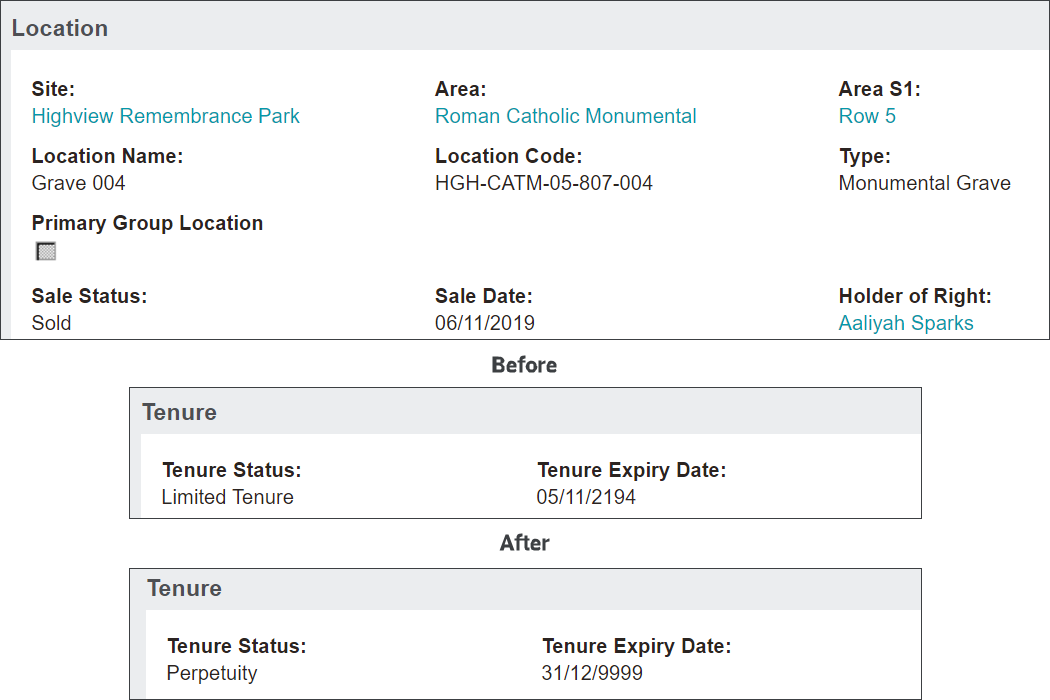
The Tracking tab of the locations will have been updated to reflect this change.