Batch Person Follow-up
When sending reminder and follow-up letters, you may have the need to send the letters in bulk.
The Batch Person Follow-Up tool will allow you to send these letters to your customers in bulk.
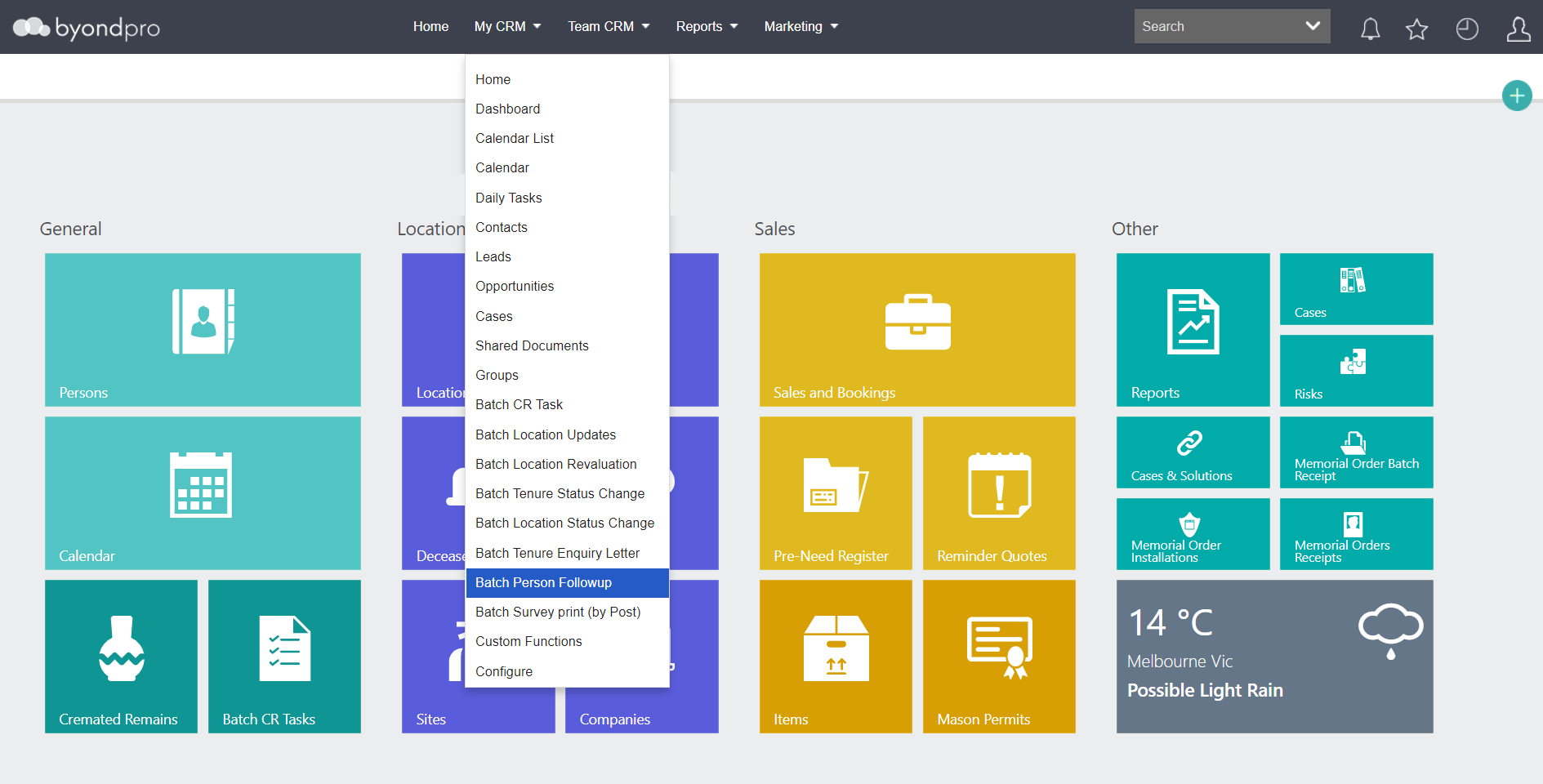
To access the tool, select My CRM from the toolbar and select Batch Person Followup from the selection list.
From the Batch Person Follow Up screen, select either Cremated or Buried from the Disposition selection list.
From the Follow up Letter type to be sent field, select the correct follow up letter. In our example, we are sending a second follow up.
Additionally, you can narrow down the list of records by:
-
First Name
-
Last Name
-
Reference

After entering your criteria, press the Find button on the right-hand side of the page.

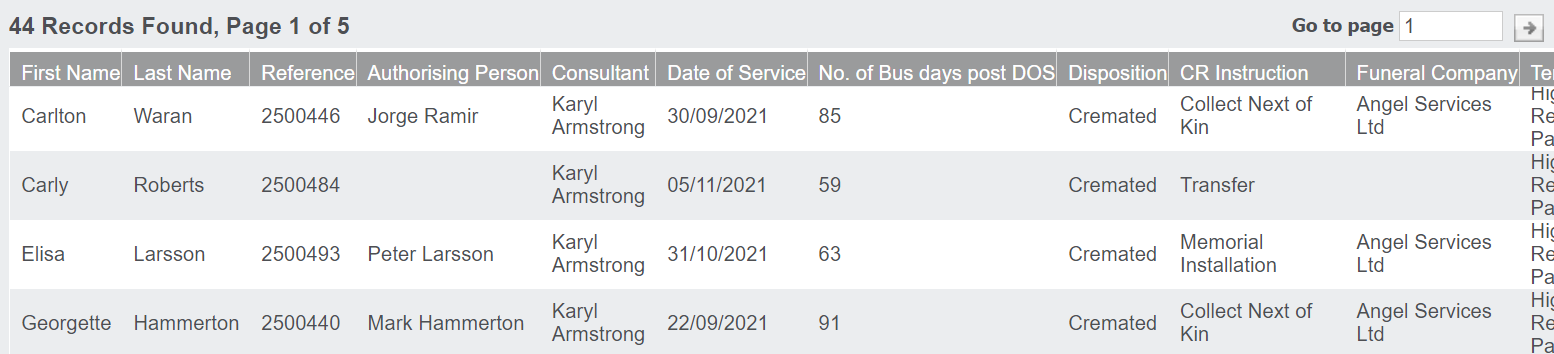
A list of cremated remains records which meet your criteria will display, along with information such as the number of days post the day of service.
After reviewing the records, press the Confirm Selection button to carry on with the process.

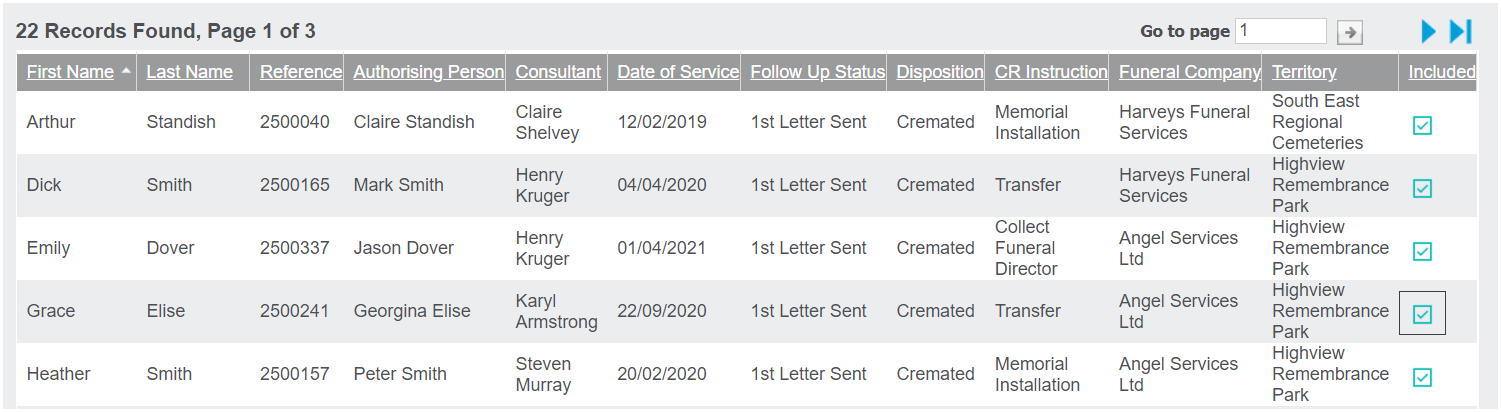
The same list will display. From the list, determine which records that you will be sending a follow up letter to.
A tick under the Included header indicates the record will have a follow up sent to the Authorising Person.
To remove from the list, simply un-tick the box in line with the cremated remains record you want removed from the selection.
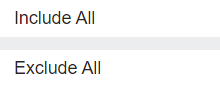
To tick all the records, select the Include All button on the right -hand side of the page.
To un-tick all the records, select the Exclude All button.
Below the list, determine which consultant will be the sender of the letter, in the Consultant field.
In the Reminder Letters field, select the letter you are issuing to your chosen records.
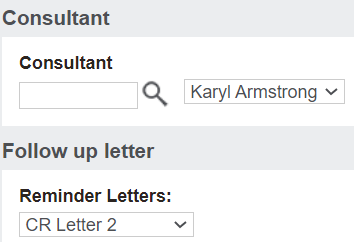
For our example, we have chosen 'CR Letter 2.' This proforma letter is designed as a follow up letter to prompt the family for a second time to provide instructions.
The letters, when sent, are addressed and sent to the Authorising Person on the Deceased record.
The consultant who appears within the letter, will be the consultant who appears on the Summary tab of the Deceased record.
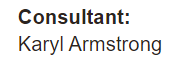
To update the consultant on the selected records and also update the consultant who appears in the letters, press the Update Consultant button.

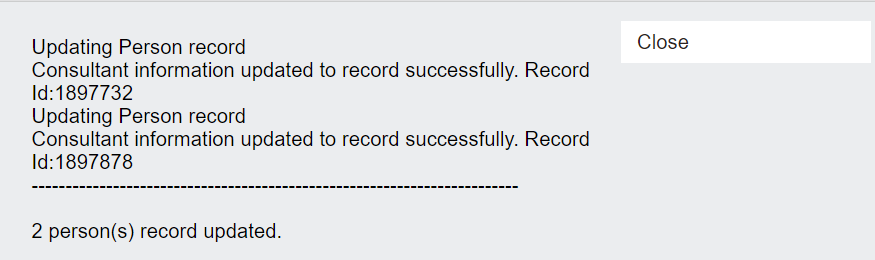
Once the records have been updated, a pop-up window will display confirming the update.
Press the Close button to close out of the pop-up window.
Once all details have been selected, we recommend selecting the Preview Letter for bulk printing button to review the letters, prior to sending.
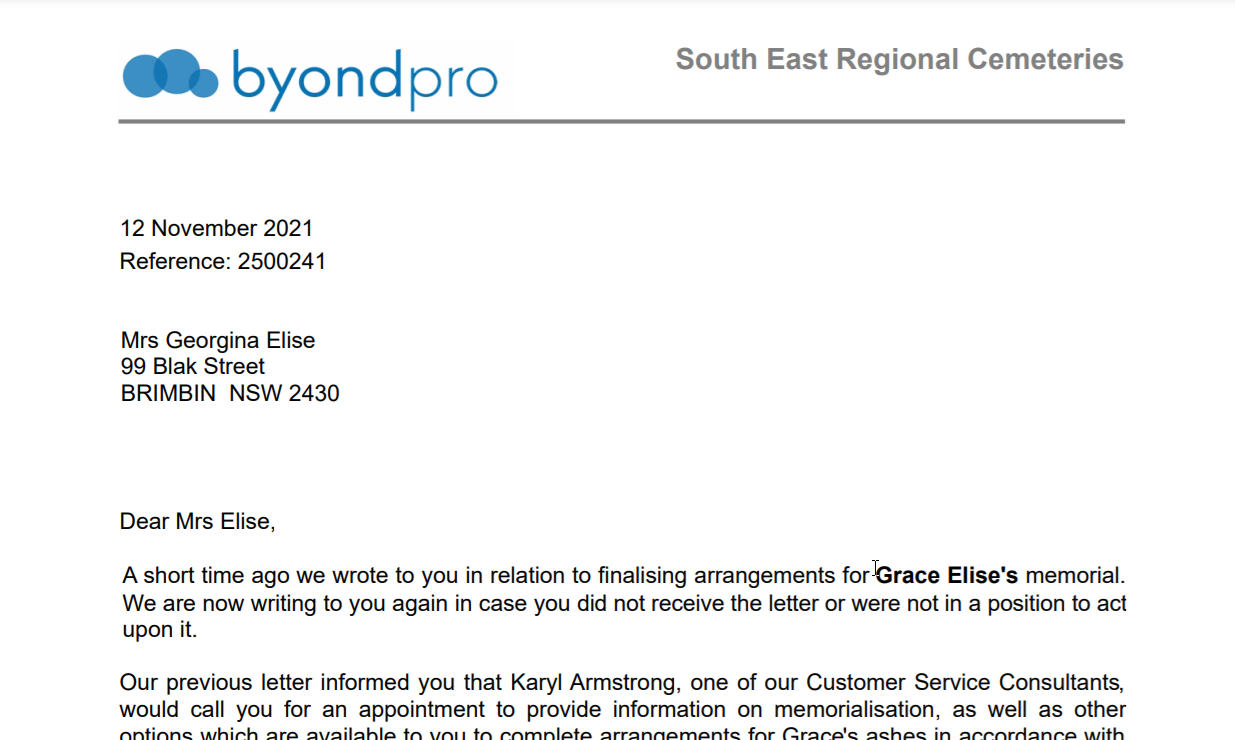
The PDF will display all formatted letters that you selected to include.
After reviewing the letters and confirming they are ready to send, select the File Letter and update Follow up status button.
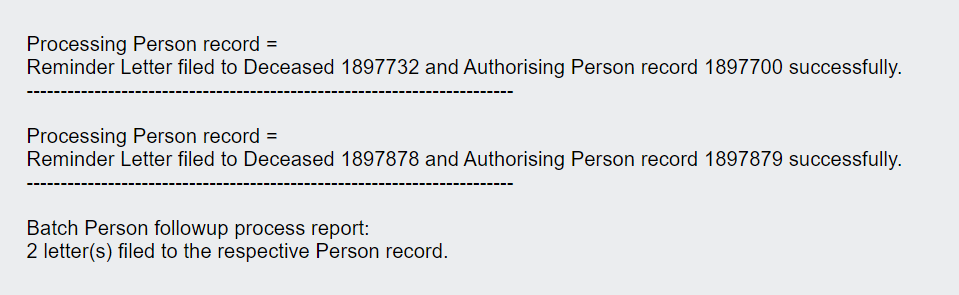
A pop-up window will display confirming that all the letters were filed successfully.
Press the Close button to exit the pop-up window.

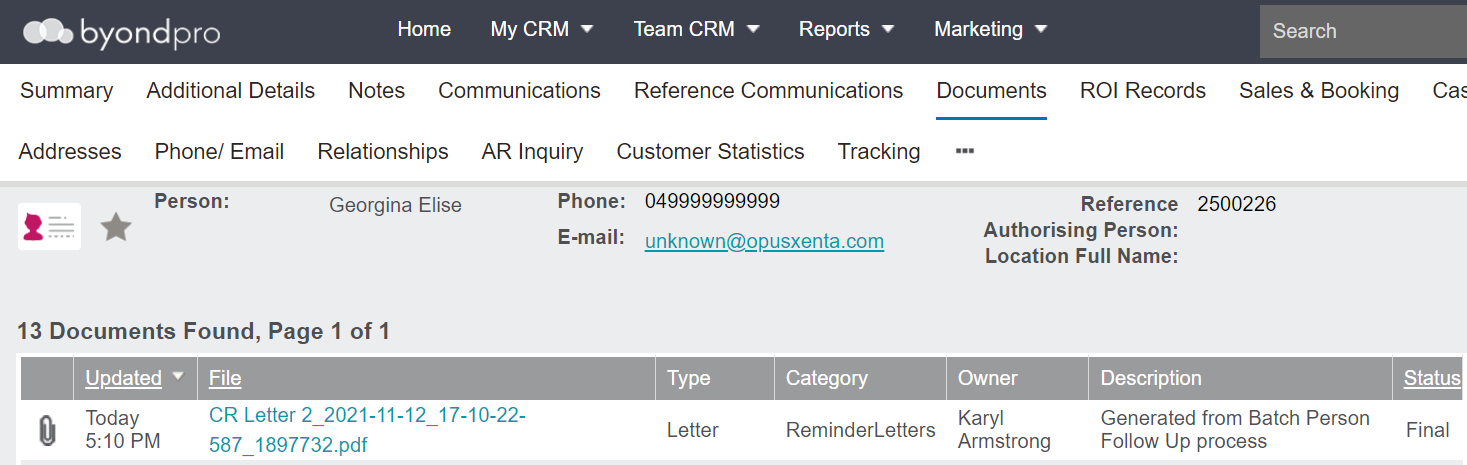
The letters will save to the Documents tab of each Authorising Person's record.
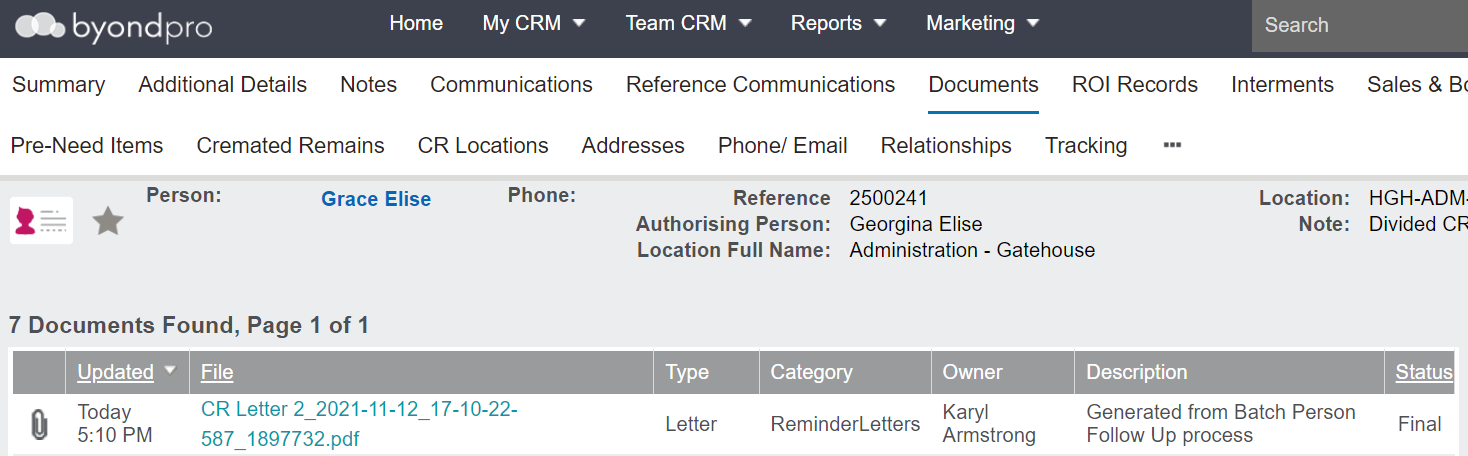
The letters will also save to the Documents tab of each Deceased record.
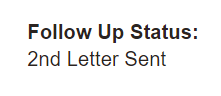
The Follow Up Status on the Summary tab of each Deceased record will have been updated to reflect the letter having been sent. For our example, this was the second follow up which has occurred on the record.