Adding Items
To start adding items to the sales order, select the Add Item button.

The Order Details information appears in a pop-up window.
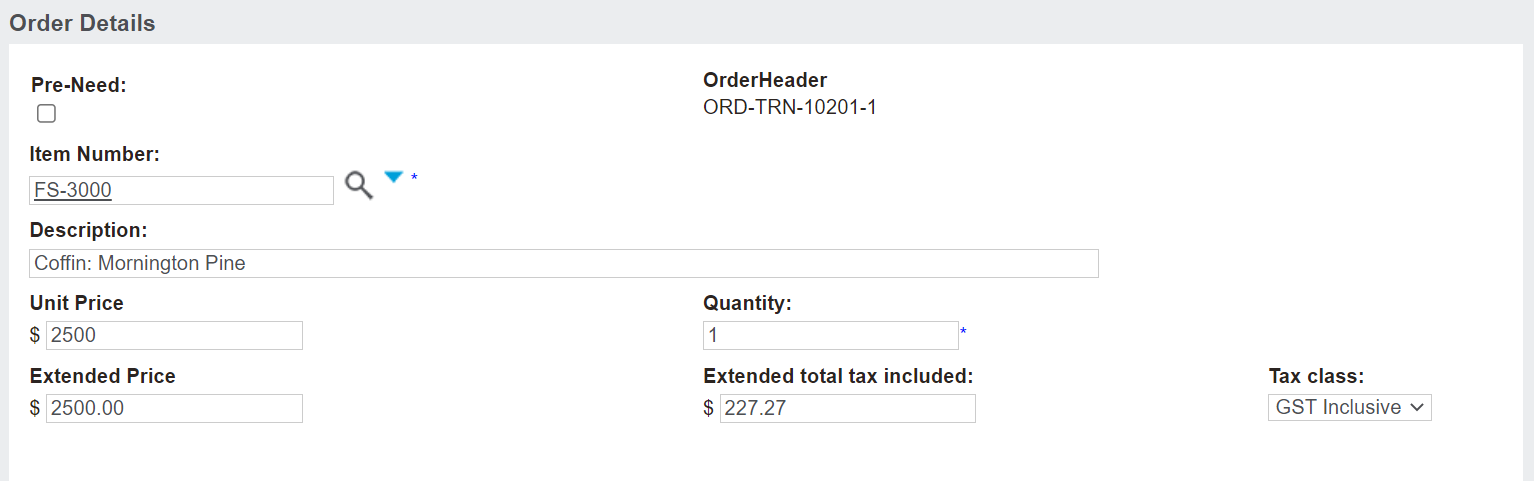
Type, use the magnifying glass, or use the blue arrow to locate the item /s required in the Item Number field.
Once the item is chosen, the remaining fields will populate from the price list settings.
Users can update fields, such as the quantity or the price as necessary, provided the appropriate settings have been applied.
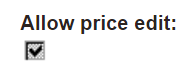
On the item the Allow price edit field must be ticked, in order to allow all users to edit the price of that item.
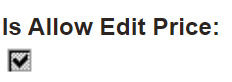
If the item does not have this field ticked, certain users, such as a Supervisor, can have Is Allow Edit Price ticked on their profile. This function serves as an override on the item setting for supervisors.
If the item has Allow description edit ticked, users can update the Description field, which appears on invoices.
Press Save and New on the right-hand side of the page if there are other items to add to the sales order and complete the process again.
Press Save and Close on the right-hand side of the page, if this is the final item to add to the sales order.
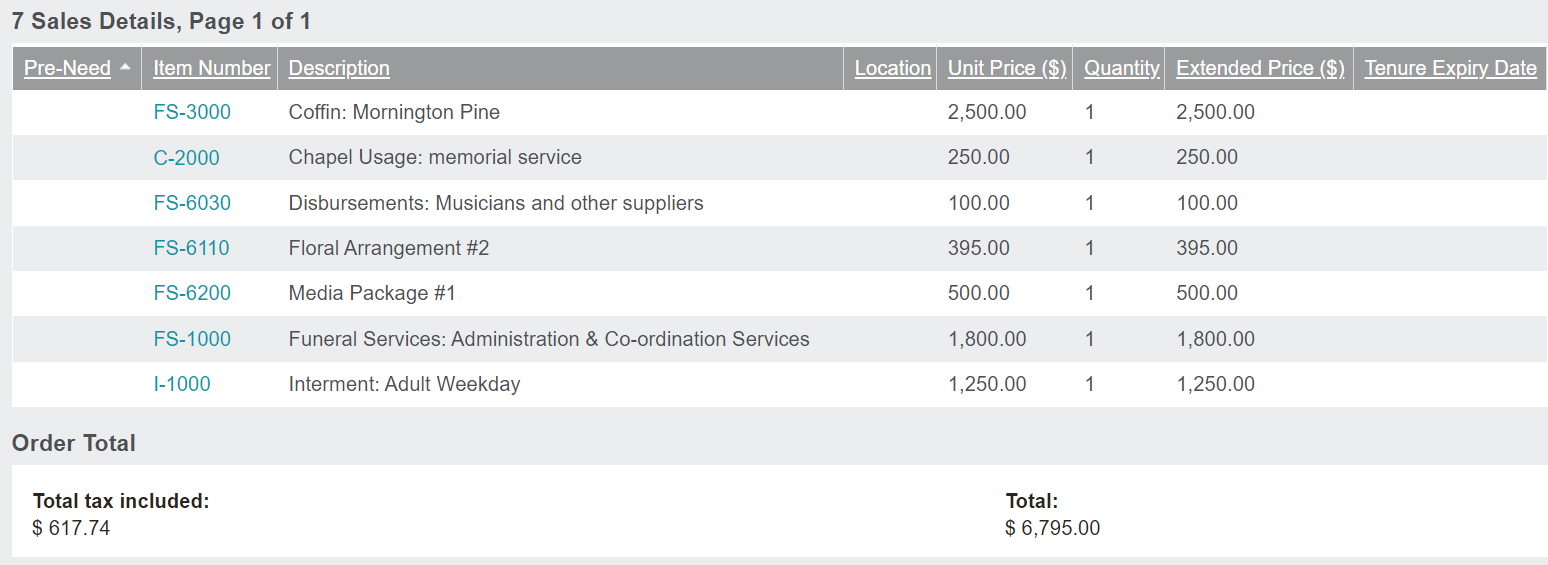
The Sales Details section will have been updated to reflect the item /s that have been added.
The Order Total fields will display the total tax included in the sales order and total of the sales order.