Adding & Deleting Relationships
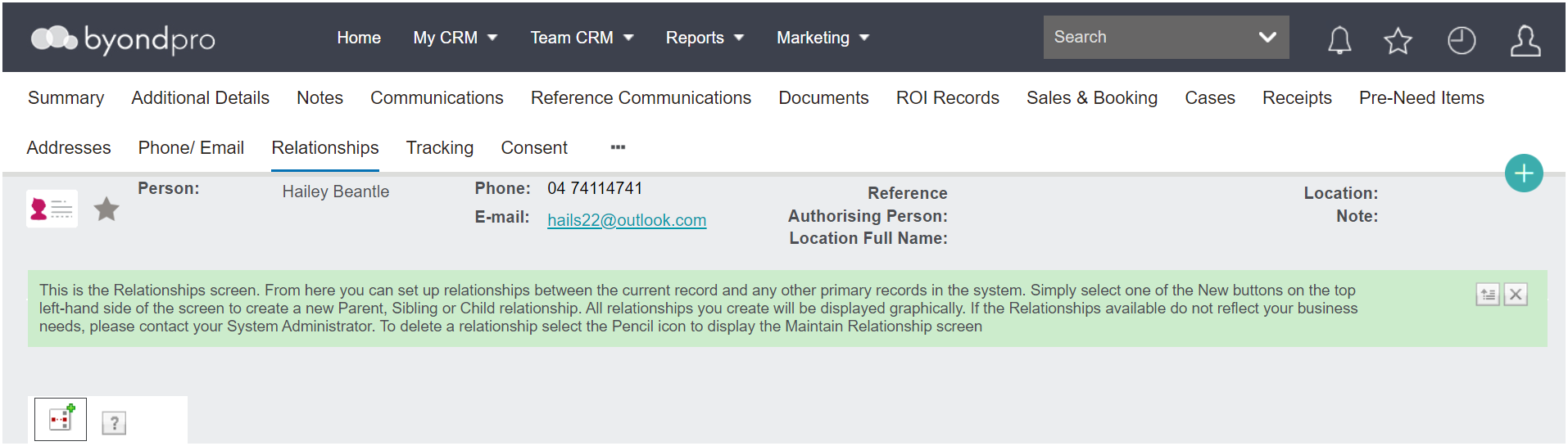
The Relationships tab of a person record is a dedicated screen to link records of personal relationships, such as sibling, child, spouse, etc.
The Authorising person record can also be located on this screen.
Having relationship contacts can be useful for our user's needs.
To add a relationship:
Choose the hierarchy symbol on the left-hand side of the Relationships tab.
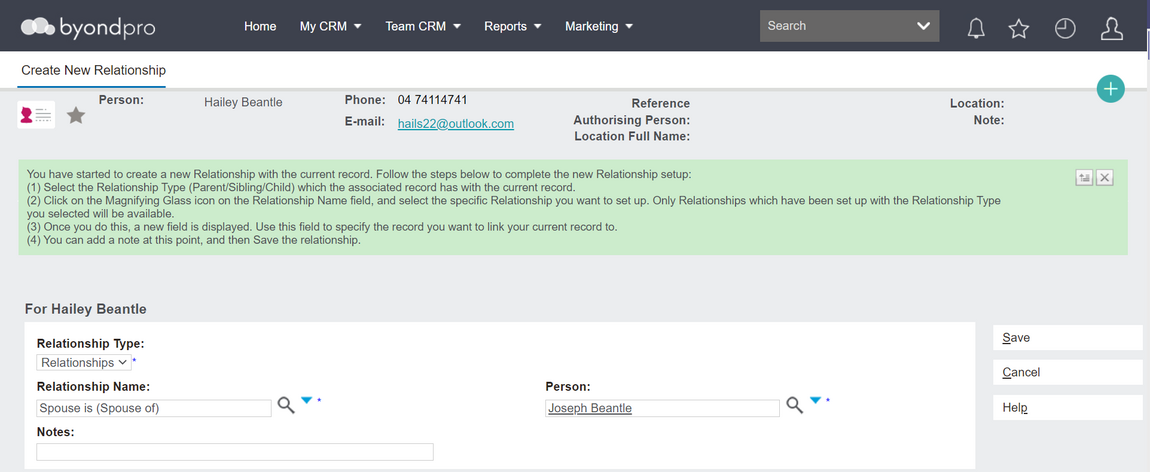
Fill in the fields from the top down.
Relationship Type will always be Relationships.
With the Relationship Name field populated, the field of Person appears for the user to locate the person's spouse, as in the below example.
Please note that the Relationship Name field should be thought of from the top down.
For example, Hailey Beantle is the person record.
Start with Hailey and think of what relationship she has to the new person.
As Joseph is the spouse of Hailey, the relationship should appear as below:
Notes can be added to the relationship, if necessary.
Once all fields are completed, choose Save on the right-hand side of the page.
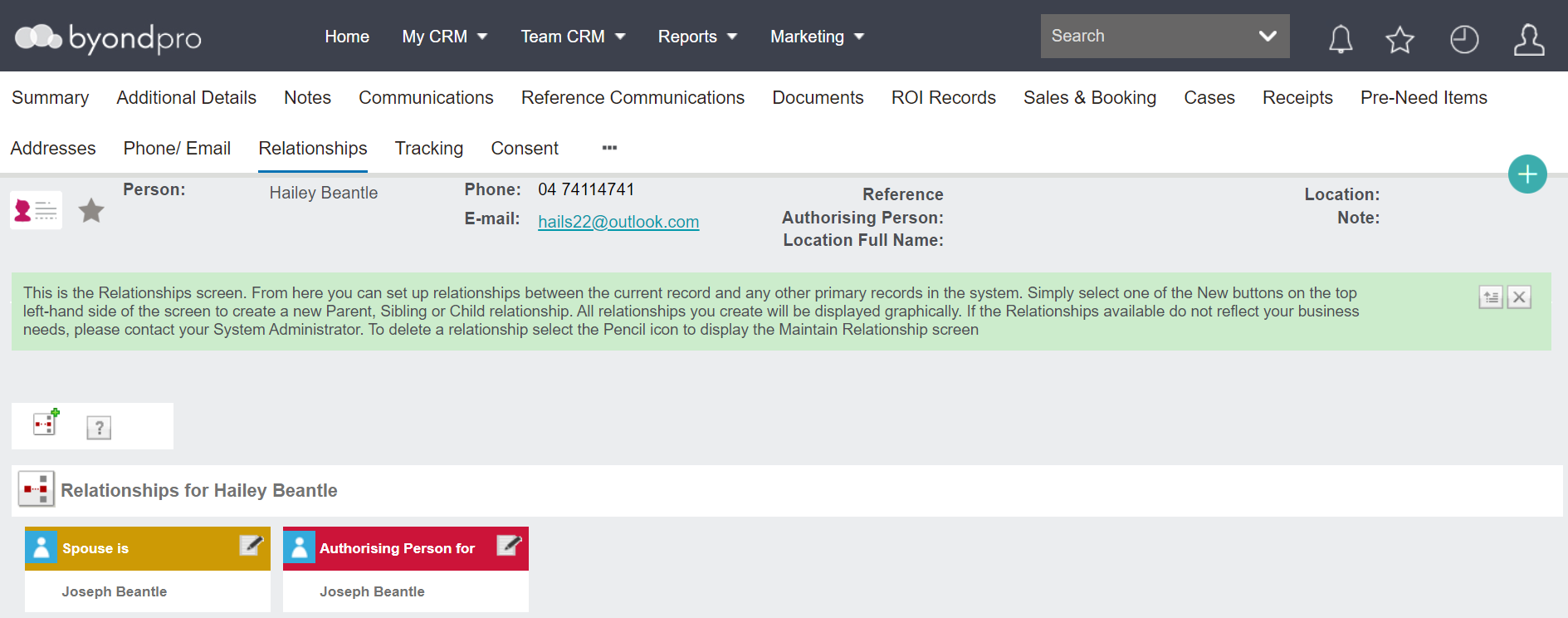
The new relationship will now display on the Relationships tab.
You can now go back and forth between the two records, by clicking on the name in the Relationship.
For example, by clicking on Joseph Beantle in the above image, you can visit Joseph’s person record.
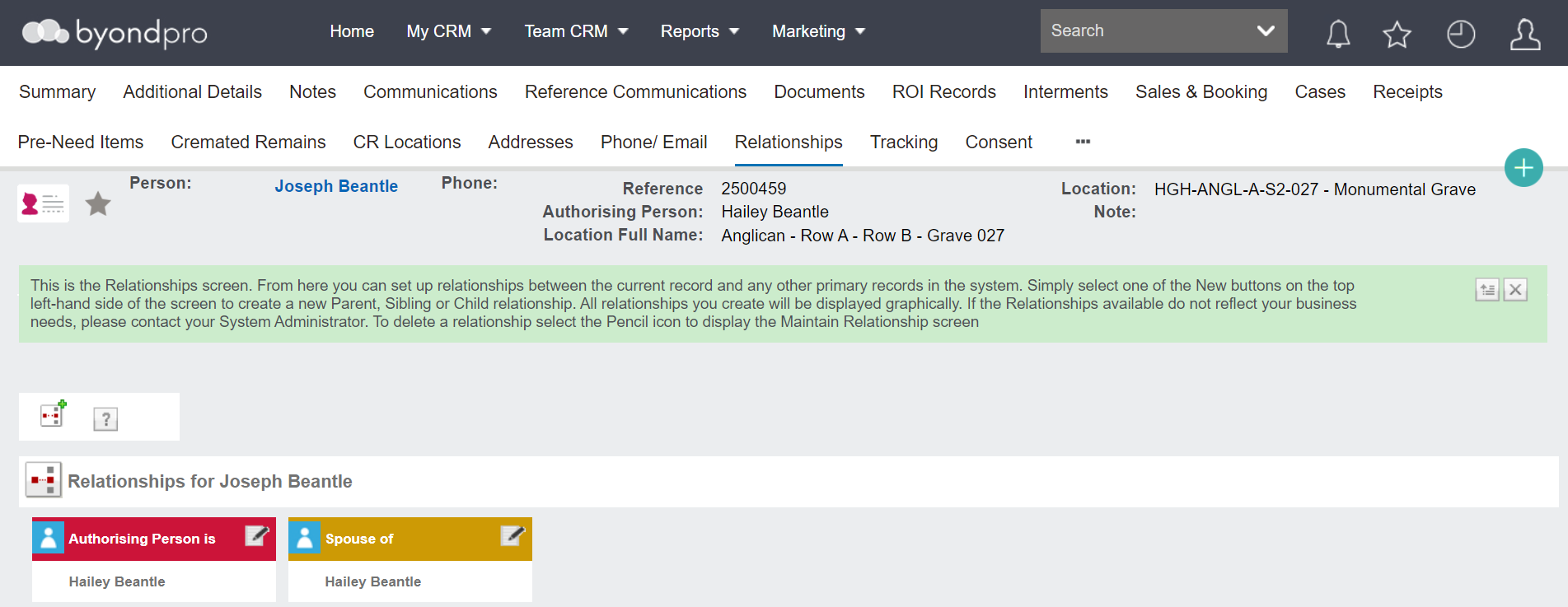
If you then went to Joseph’s Relationships tab, you would see Hailey's name there and you can go to Hailey’s page by clicking on her name.
Delete a Relationship
To delete an incorrect relationship:
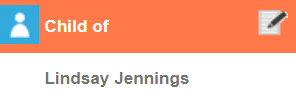
Choose the Pencil icon on the Relationship.
Tick the Remove Relationship box
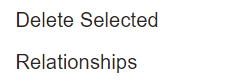
Choose the Delete Selected Relationships button.
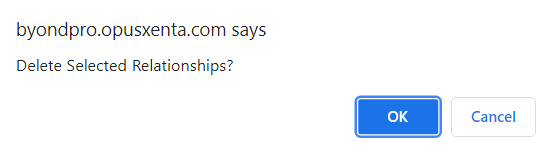
Confirm OK on the message which appears.
The relationship will now be removed from both records.