Add to Group
Groups that are created as Static groups will allow users to add records to the group after the creation of the group, provided the records meet the groups selected criteria.
Please note that a record cannot be added to a group with a type of dynamic.
There are two ways to add additional records to a static group:
-
From the individual record
-
From the group record
From a Person Record
While on a person record, a user can be added to a group with a type of static.
On the right-hand side of the person record, select the Add to Group button.

A pop-up window will display.
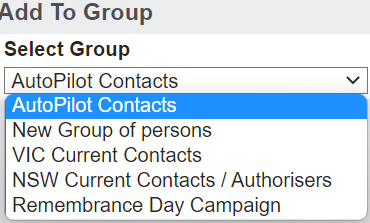
In the Select Group field, select the chosen group from the selection list.
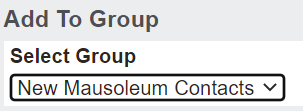
Then press the Save button on the right-hand side of the page.

If the record does not meet the search criteria set on the group, a pink banner will display advising the record does not meet the criteria.

Should the person record meet the group criteria, they will be added to the group.

From a Group Record
Alternatively, from the group record, there will be an Add Records to the Group button on the right-hand side of the page.
Click on the button and you will be able to use the following options to find a record to add to the group.
-
Find/Saved Search
-
Advanced Find
-
Add from another groups records
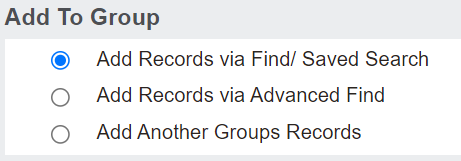
Find/Saved Search
To add using the Find/Saved Search option, select this option from the pop-up window and press Continue.

Complete a search using the record search options available and press Find on the right-hand side of the page.
Records which meet your search criteria will display below.
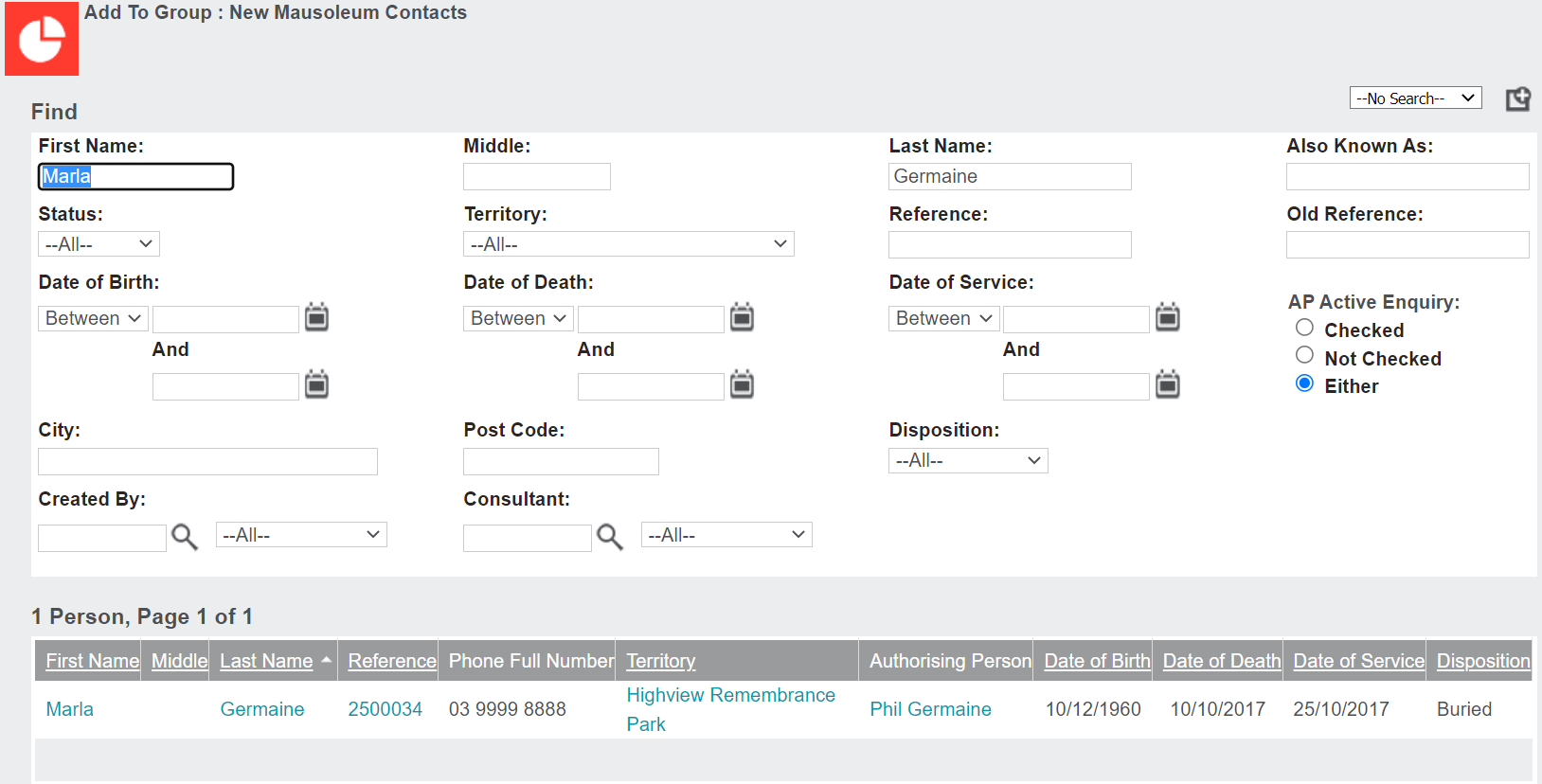
Select the Add to Group button on the right-hand side of the search page.

Should the selected record /s meet the group criteria, they will be added to the group.

Advanced Find
To add using the Advanced Find option, select this option from the pop-up window and press Continue.
Determine the search criteria to filter the database records and locate your selected record.
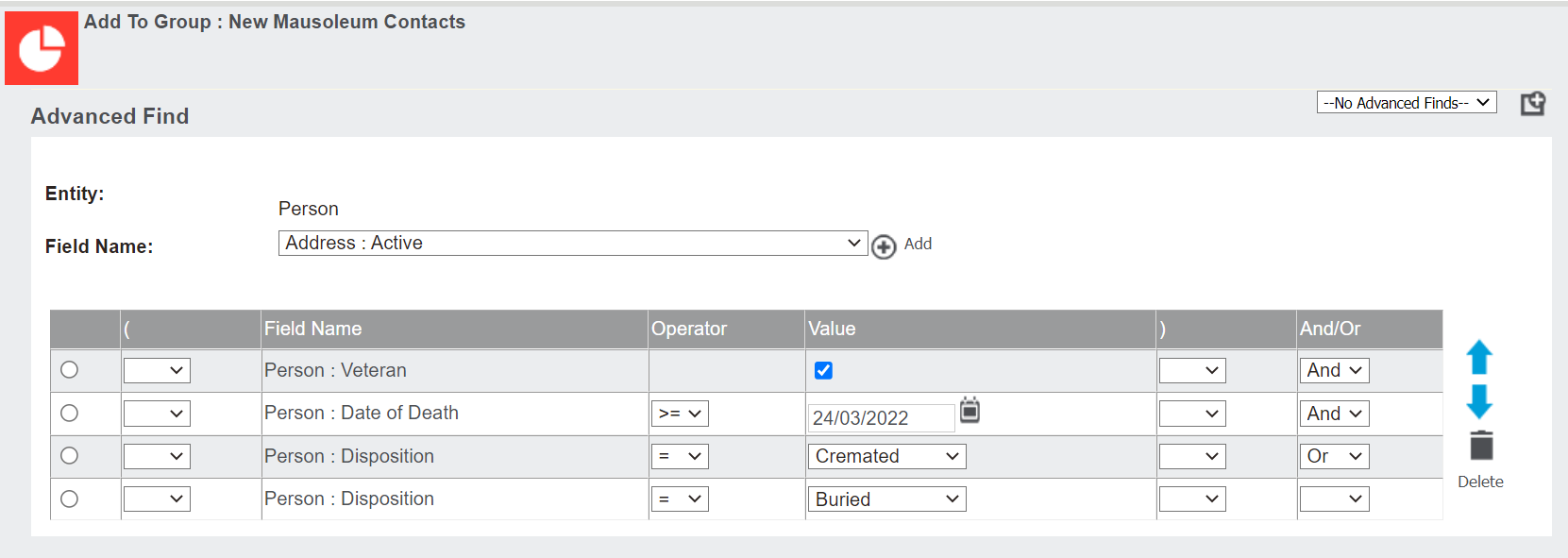
The Entity field will populate as the entity chosen on the group.
Fields in the Field Name field will be limited to fields linked with the selected entity or module.
Select the first field to start building your search criteria and select Add.
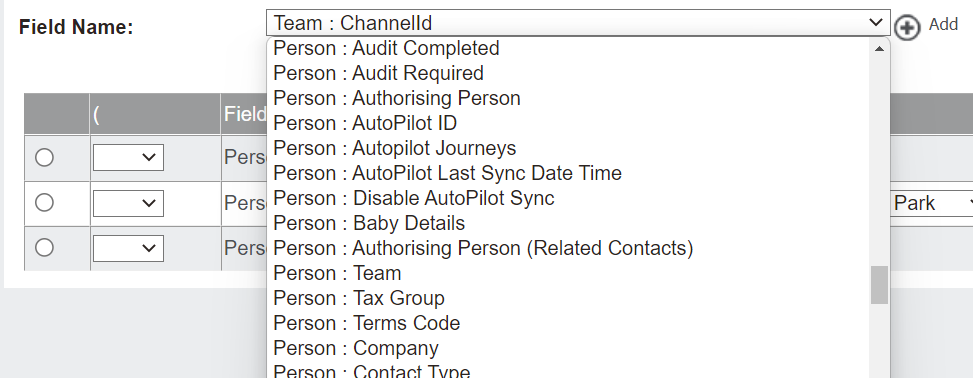
The selected field will display below, where you can choose the following clauses for the field
-
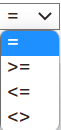
Operator
-
Values

-
And/Or
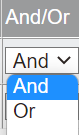 Please note that the opening and closing brackets can create more complex criteria for your search.
As with the previous page, tick the circle next to the field and select the Delete icon to remove a field.

You can use the arrows to change the order in which the content appears. .

Once you have entered in all search criteria, press the Find button.

Should you wish to add all the records to the group, select the Add to Group button on the right-hand side of the page.
Alternatively, visit the individual record by clicking on the name hyperlink and select the Add to Group button to add the individual record.
Another Group Records
To add using the Another Group Records option, select this option from the pop-up window and press Continue.
Select the group from the Select Group selection list.
Then press the Save button.

A message will display confirming how many records were added to the group.
