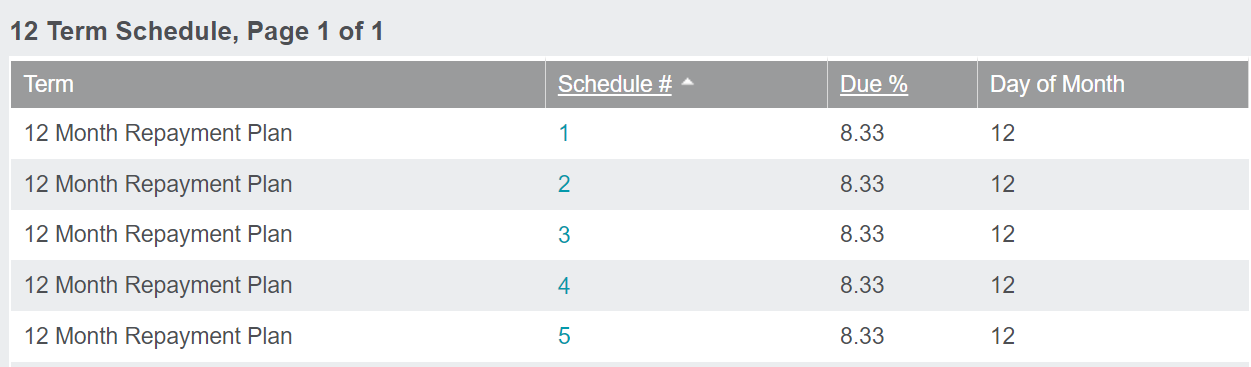
Add a Payment Schedule
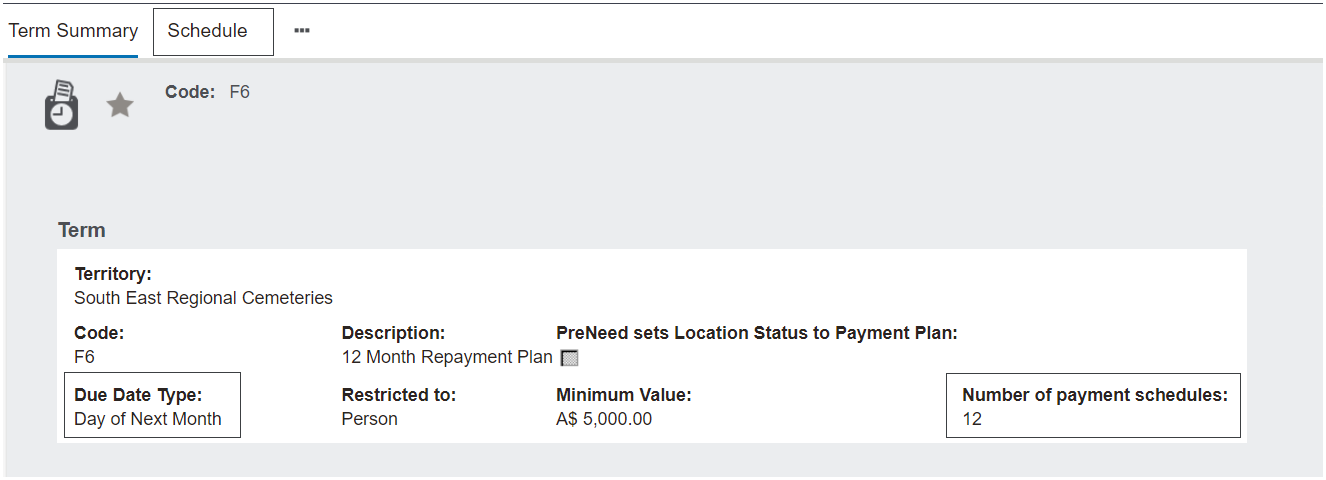
In our above term, the due date type is listed as Day of Next Month, with 12 payment schedules.
Upon setup, users need to add 12 new schedules by clicking on New Schedule from the Schedule tab of the Term.

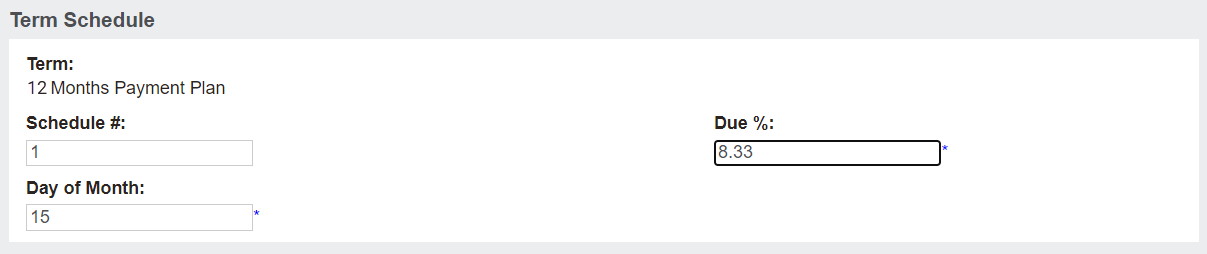
Each payment schedule would require a Schedule Number and the Due Percentage on the particular payment.
For our example of a 12 Month Repayment Plan where all payments are equal, this might be 8.33% for each payment.
If following the maths, this would apply 99.96 % of the payment once all payments are applied.
The remaining 0.04 % is added to the final payment or first payment, depending on your ideal process.
Additional fields may display depending on the due date option.
See the below table for each Due Date Type, the additional field (s) which display, and how they can be used.
|
Due Date Type
|
Additional Fields
|
Usage
|
|
Days from Invoice Date
|
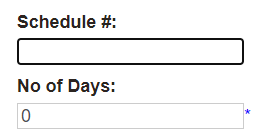 |
Additional field of No of Days.
Use this field to indicate how many days from the invoice date the payment will be due.
For example, entering in 5 in this field would place an expectation for payment to be made 5 days after the invoice date.
|
|
End of Next Month
|
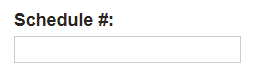 |
No additional field displays.
Payment schedule will simply indicate the last day of the month. (28, 29, 30, or 31)
|
|
Day of Next Month
|
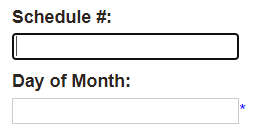 |
Additional field of Day of Month.
Use this field to indicate what day of next month the payment will be due.
For example, entering in 15 in this field would place an expectation for payment to be made on the 15th day of the following month.
|
|
Days from Day of Next Month
|
 |
Two additional fields of No of Days and Day of Month.
Indicate how many days from what day of the month payment would be expected.
For example, entering in 5 in the No of Days field and 15 in the Day of Month field would place an expectation for payment to be made 5 days after the 15th of next month, or the 20th of next month.
|
Once completing all the fields, press Save.

Complete the process again for each payment schedule.
Once completed with adding each schedule to the term, the term will be ready for use in a Sales Order.