Add a New Term
Navigate to Profile Menu > Administration > Cemetery System Setup > Term Setup
To add a new term, choose New on the top right-hand side of the page.

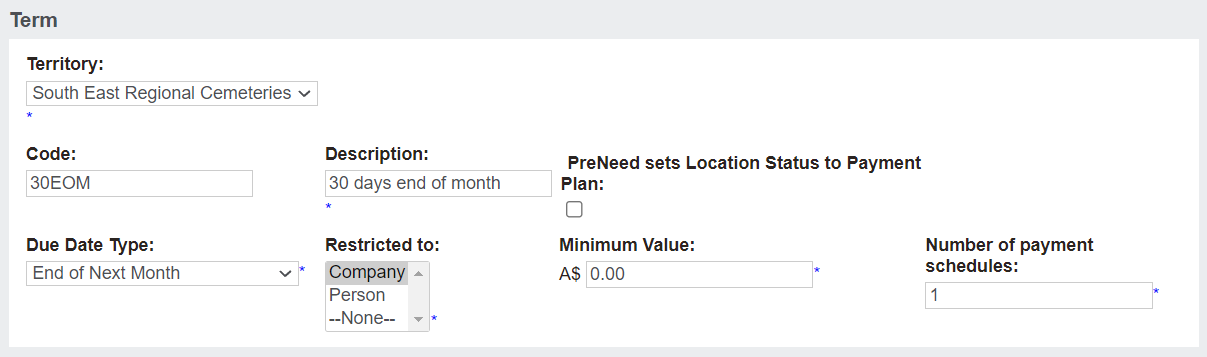
The Territory field will default to your overarching cemetery trust.
The Description of the Term can be different than your ERP; however, the Code, must be the same as in your ERP.
If integrated to Sage 300
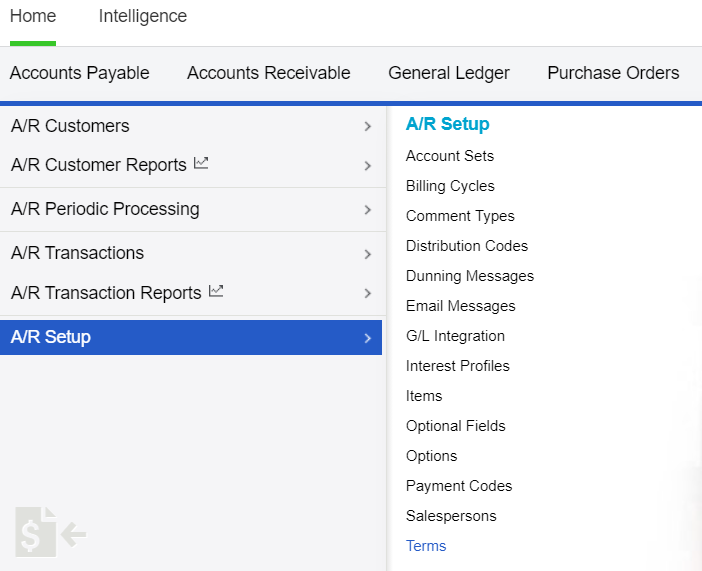
Log in to Sage 300 and visit the Accounts Receivable section.
Terms can be found in the Terms area.

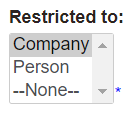
Returning to byondpro, it's important to note that terms can be restricted to Company and / or Person records.
By restricting to person records only, when a user chooses Bill To Company on the sales order, the term will not be an option.
Tick the Preneed sets Location Status to Payment plan to trigger the Payment Plan sales status on each location which is sold under a pre-need payment plan, if Advanced Revenue Recognition is switched on.

Payment Terms can be restricted by a Minimum Value.
By setting a minimum value, users would need to spend this value or more in a sale before the sale can be invoiced to the customer in the requested manner.
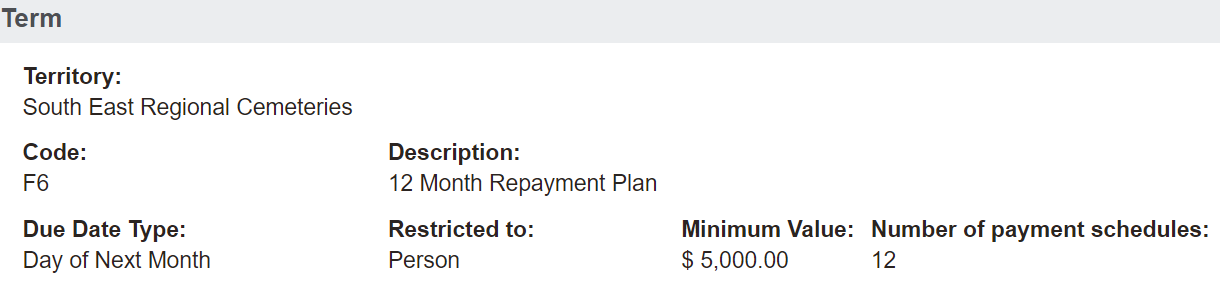
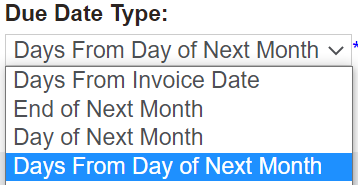
The Due Date Type and Number of payment schedules fields relate to the setup of the term's schedule.
The Due Date Type field indicates when the payment will be due and drives the mechanics behind setting the due dates.
The following selection options display:
The following selection options display:
Once all fields are completed, press Save.

You will then need to add a payment schedule for each number of payment schedules entered, following the process in the Add a Payment Schedule section of this guide.