Add a New Receipt Type
Navigate to Profile Menu > Administration > Cemetery System Setup > Receipt Type Setup
To add a new term, choose New on the top right-hand side of the page.

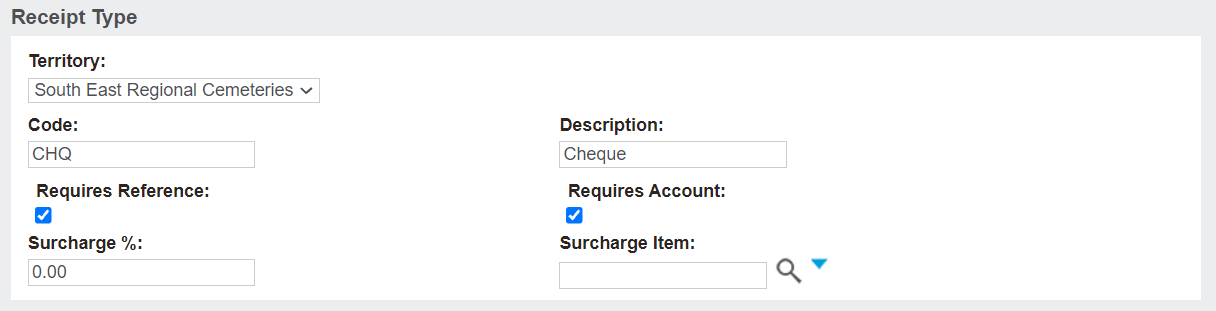
The Territory field will default to your overarching cemetery trust.
The Description of the Receipt Type can be different than your ERP; however, the Code, must be the same as in your ERP.
If integrated to Sage 300
Log in to Sage 300.
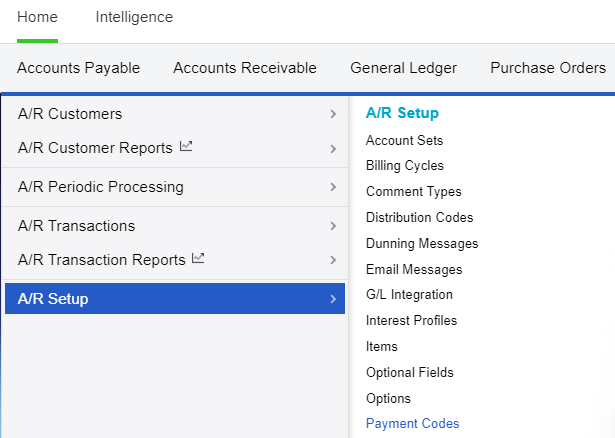
Navigate to Accounts Receivable > A/R Setup > Payment Codes
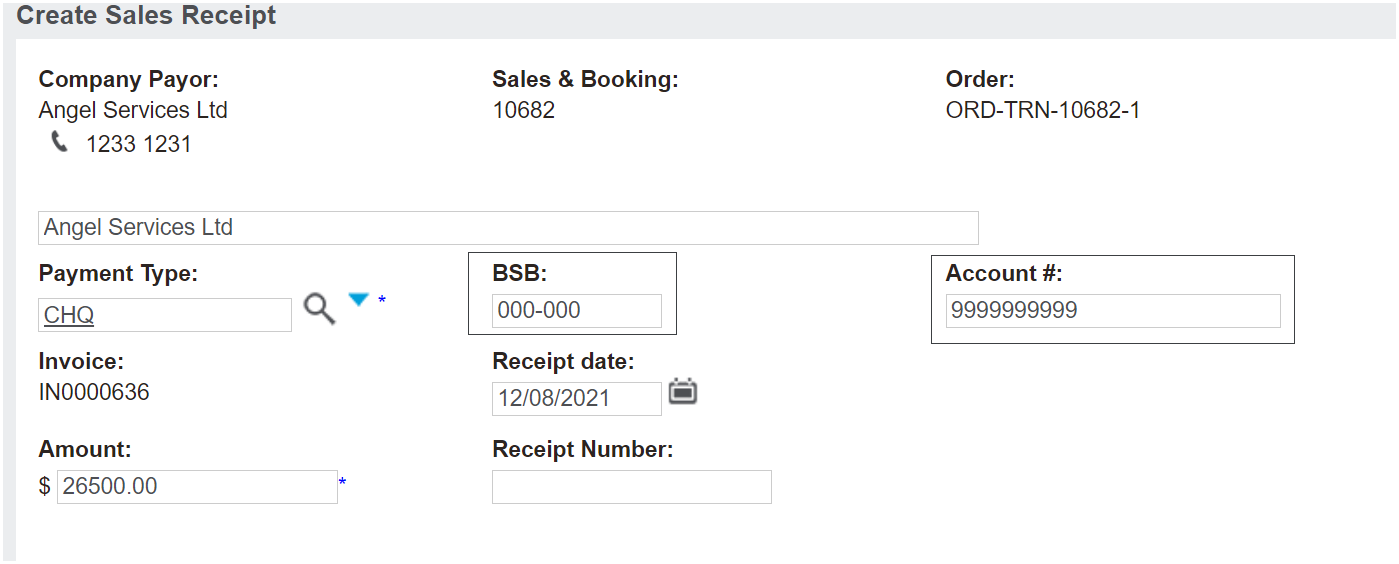
Returning back to byondpro, the Requires Reference and Requires Account tick boxes will create fields specific to the receipt type Cheque where the customer needs to capture the cheque reference and account numbers when they receive a cheque payment.
By ticking these options on a receipt type, it forces the user to add these bank details when this option is chosen as the receipt type.
If integrated to Sage 300, the bank details will go through to the Accounts Receivable section of Sage 300, where a list of banking details can then be created and sent off to the bank with the physical cheques.
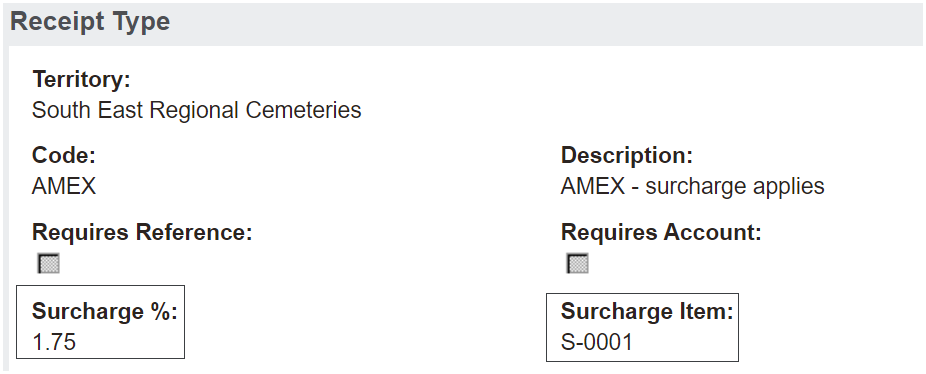
The Surcharge field is the extra charge placed on customers for using different credit card payments. In the US, these surcharges for credit cards are not allowed, and therefore would not apply. However, in Australia these surcharges can occur.
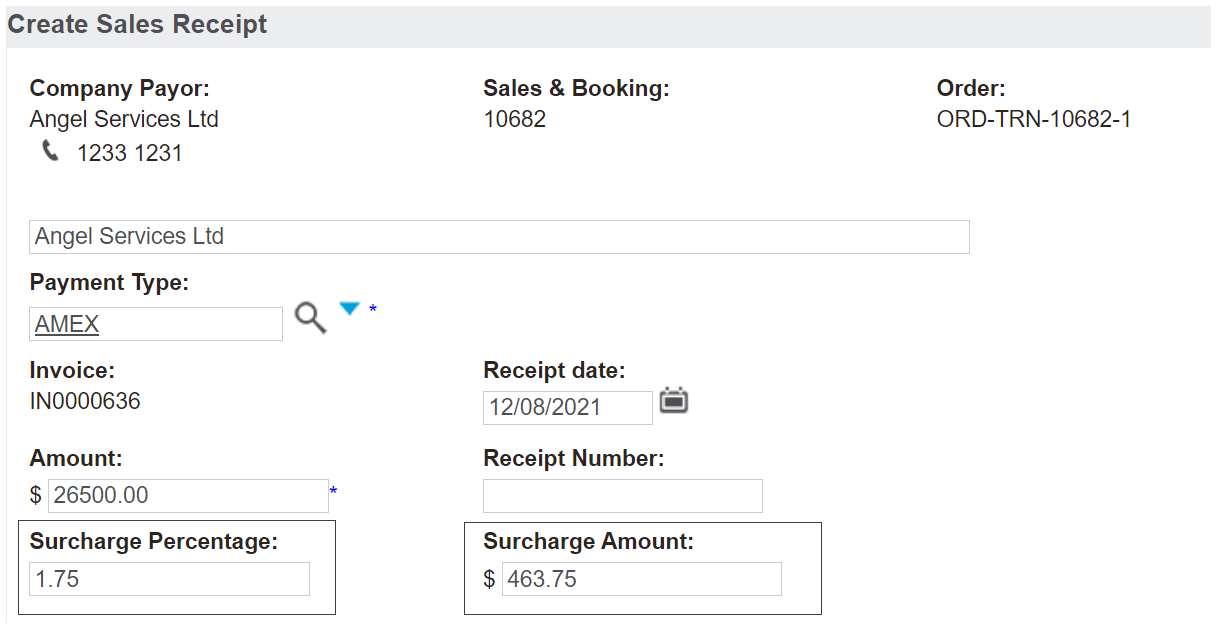
In the below example, the American Express payment has a surcharge of 1.75%.
If there is a surcharge, a surcharge item needs to be added to the items list and then added under the field of Surcharge Item. For our example, the surcharge item is S-0001.
When choosing a receipt type with a surcharge applied to it, fields will populate with the Surcharge Percentage and the Surcharge Amount.
When the receipt is processed with an applicable surcharge amount, a separate invoice is created and receipted for the surcharge automatically.
Once all fields are completed, press Save.
