Add a New Location Associated Item
To add a new Location Associated Item, choose New on the top right-hand side of the page.

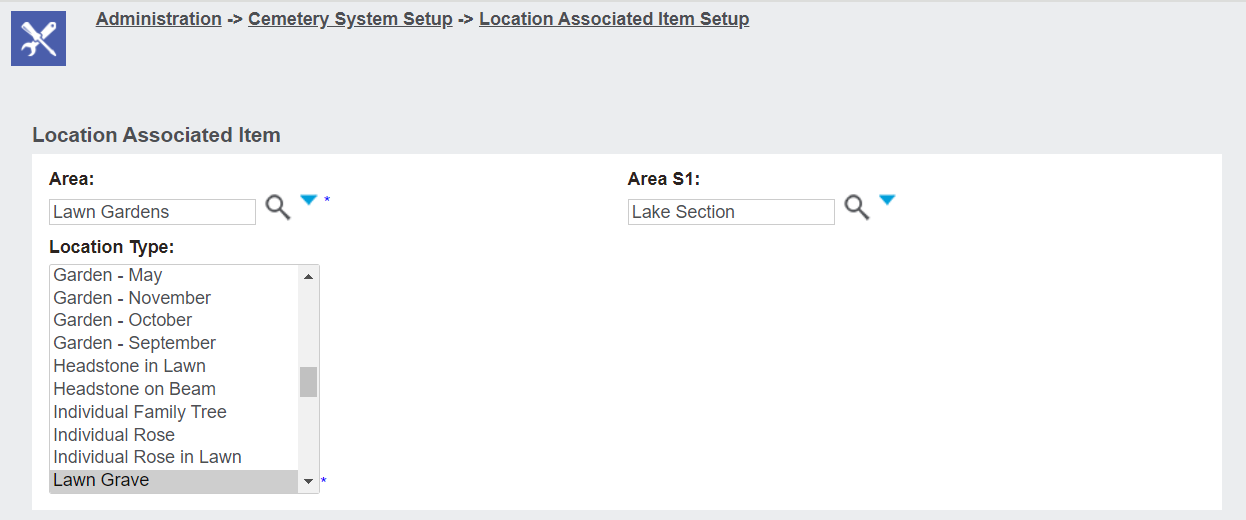
A Location Type, such as Lawn Grave as in our example below, needs to be chosen.
Next, theLocation Associated Item needs to be assigned to an Area of the cemetery, with our example being in the Lawn Gardens area.
An Area S1 can also be applied to provide more specificity to the location group.
For our example below, the items found on the Items tab would typically be sold in the Lake Section of the Lawn Gardens area.
Be sure to press Save on the right-hand side of the page.

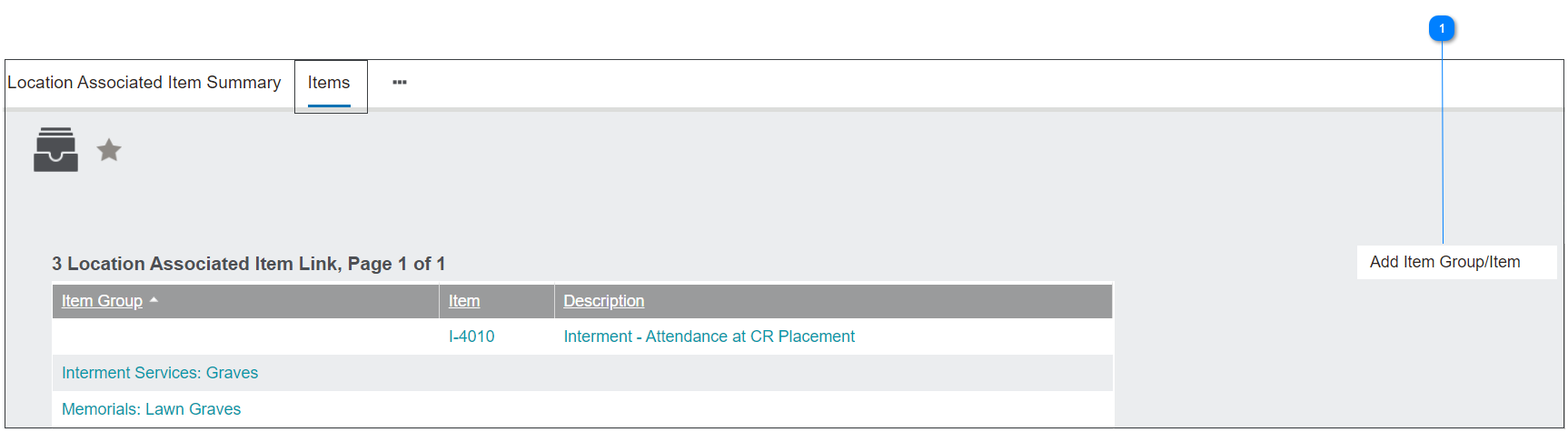
Add Item Group / Item
Once the Location Associated Item is set, the items that normally are sold here would need to be added on the Items tab.


Either an item or an item group can be added by using the search fields in the respective field to find the item or group.
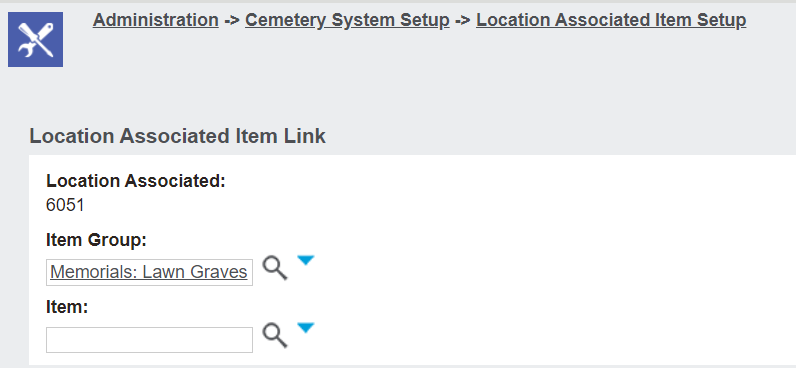
Once selected, press Save on the top right-hand side of the page.

The chosen item or item group will now be associated to the location.

You will need to complete this process again for every item / item group you want to associate with the location type.