Account Set Code
Another configuration is the ARAccountSetCode, which may be helpful for the finance team to easily identify the value of at-need versus pre-need held against accounts receivable on the balance sheet.
This configuration would generally only be necessary to consider if byondpro is integrated to Sage 300, or if your cemetery has financial data extracted from byondpro to CSV and imports the data to your ERP.
We will review the Sage 300 integrated setup only.
Navigate to Profile Menu > Administration > Cemetery System Setup > Custom Configuration
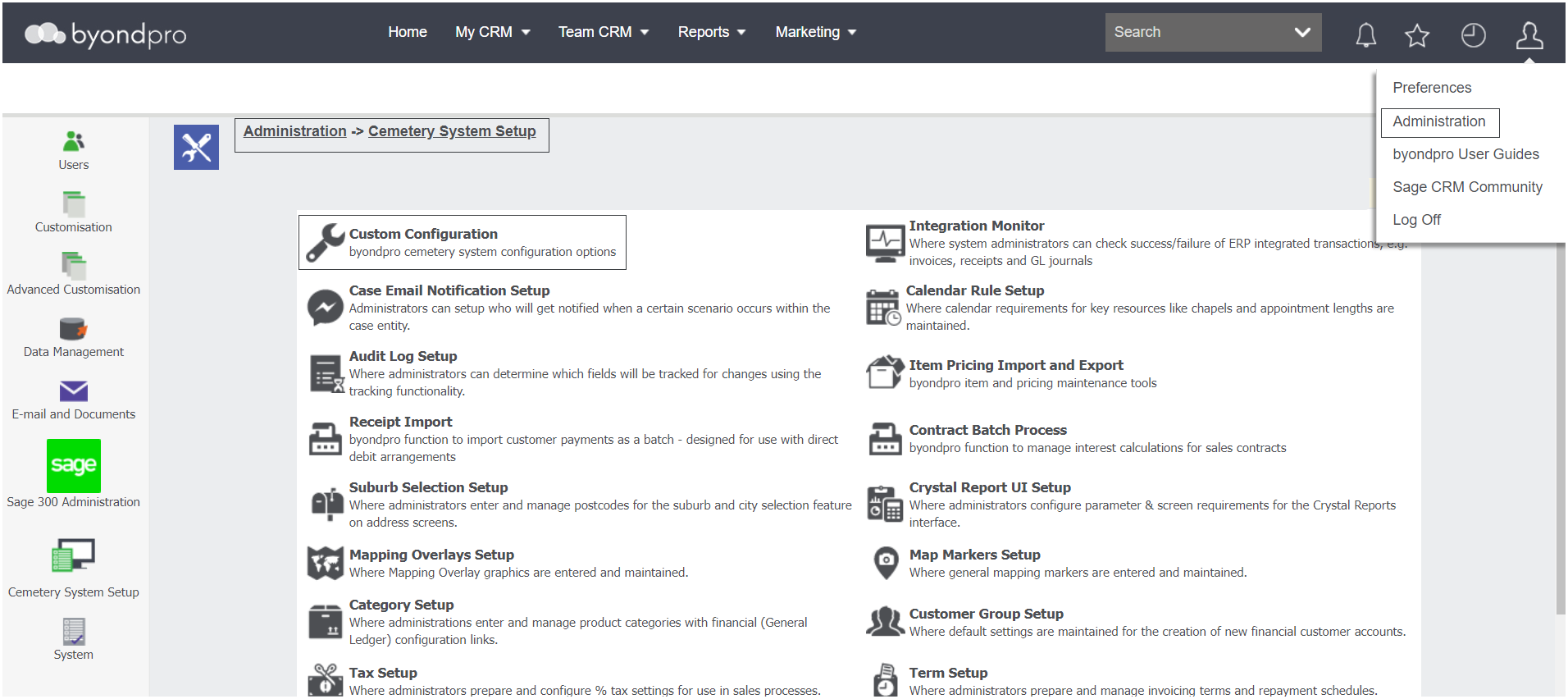
Type in ARA in the Name search field and press Find on the right-hand side of the page.

Click on the hyperlink to go into the configuration.
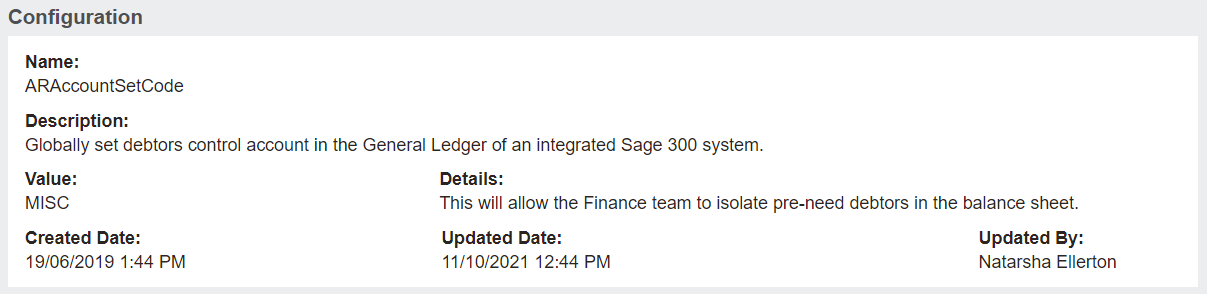
In the value, type the name of the account set you want the debtors to be posted against. We recommend the account to be the MISC account as set in your Sage 300. Should you choose another account, the account must exist within Sage 300 or your ERP.
There are a couple of options available to our customers:
-
Create a separate Account Set that will post pre-need invoices to a separate pre-need Accounts Receivable / Debtors general ledger account.For our example, we have created the MISC account
-
Setups on the Account set in Sage 300 can define the different general ledger account for this account set (this will be outlined in detail below)
-
Pre-need and at-need debtor balances will show under separate general ledger accounts according to the applicable account set.
-
Create a separate Account Set, as mentioned above, leaving the debtors general ledger account the same for both at-need and pre-need.
-
There is a custom A/R Aged Trial Balance Report available for Sage 300 that can be added for our customers. This report reads the account sets that were used on the invoices.
-
The standard aged trial balance looks at the account set configured on the customer and will not separate based on the account set used on the invoice (at-need / pre-need).
-
The custom report can be run via Account Set to see pre-need versus at-need debtors (outlined in more detail below)
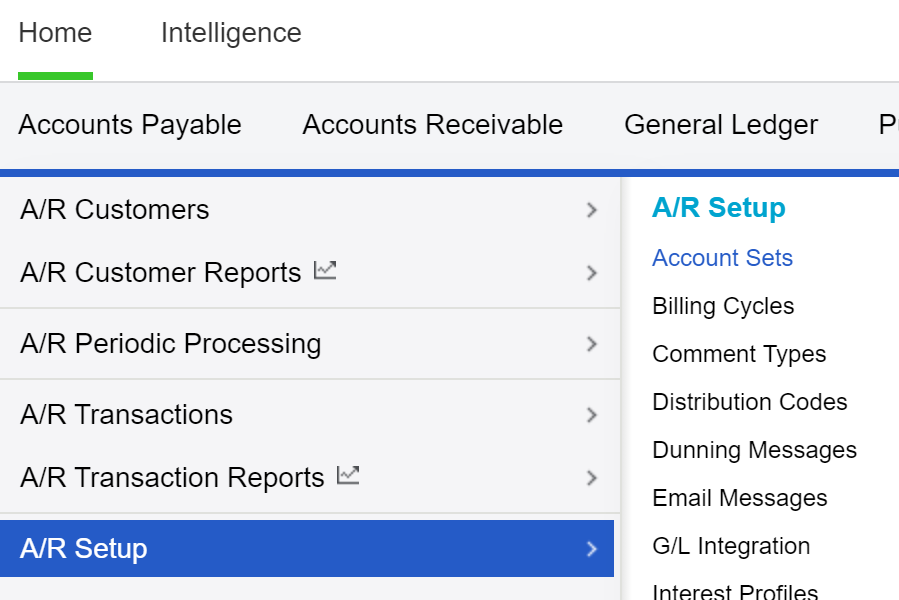
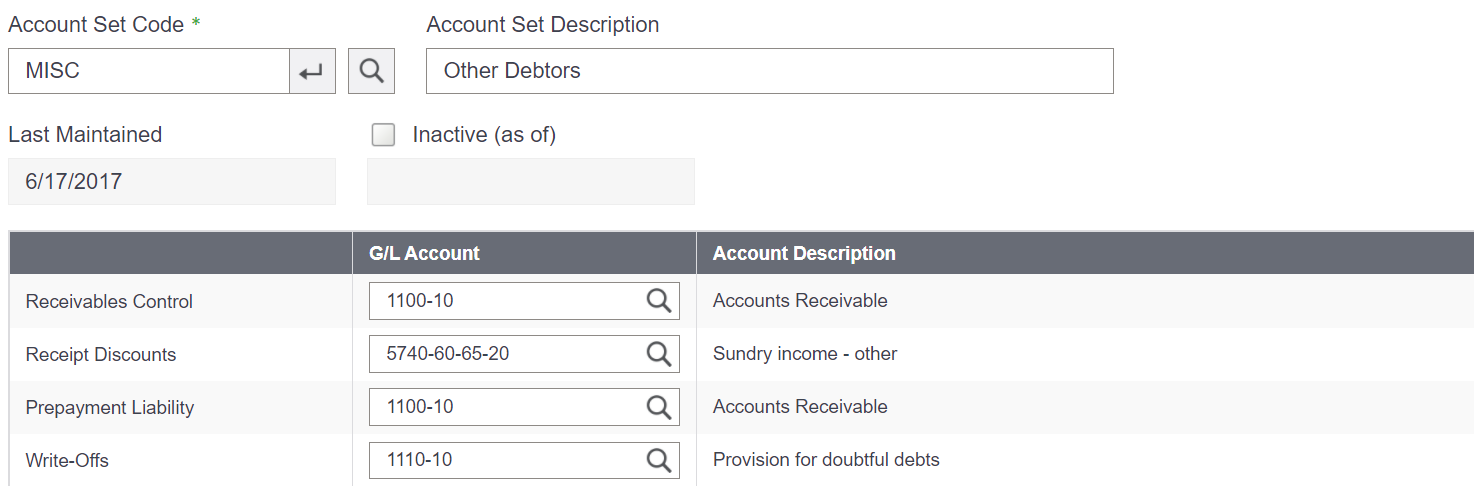
Within Sage 300, visit Accounts Receivable Setup, then Account Sets.
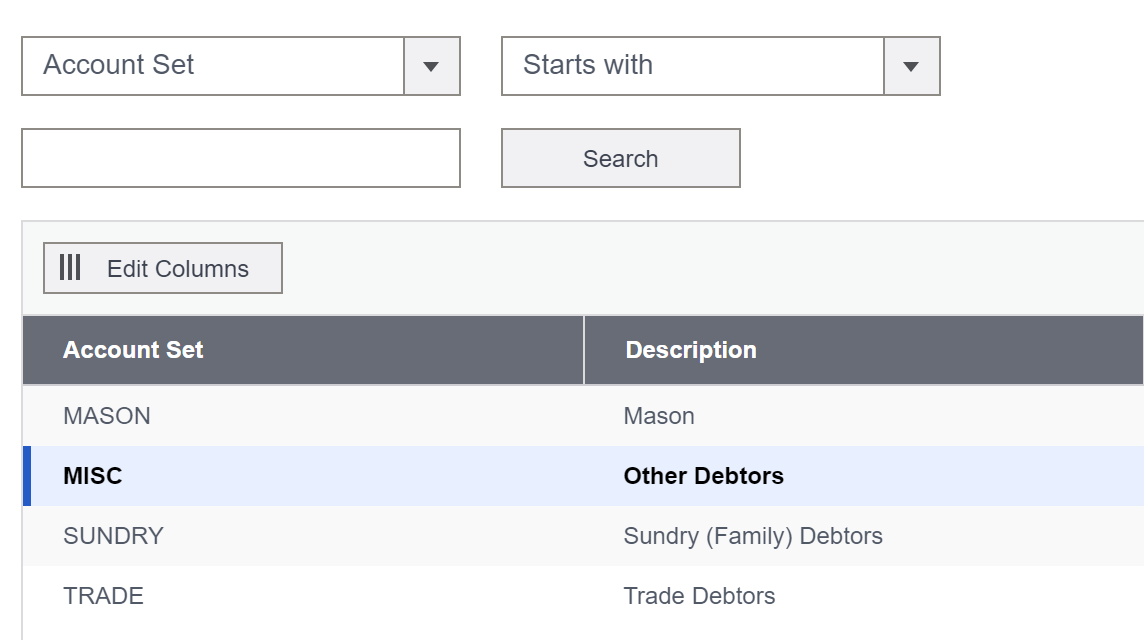
In our example, the MISC Account, described as Other Debtors will be the account set.
Should you have chosen the first option above, you would be able to see debtors balances against separate general ledger accounts under the MISC set. Perhaps, you have one general ledger account for Accounts Receivable and one for Pre-need.
The custom accounts receivable aged trial balance report will allow the finance team to run debtors reports by account set to gauge the pre-need debtors balance.
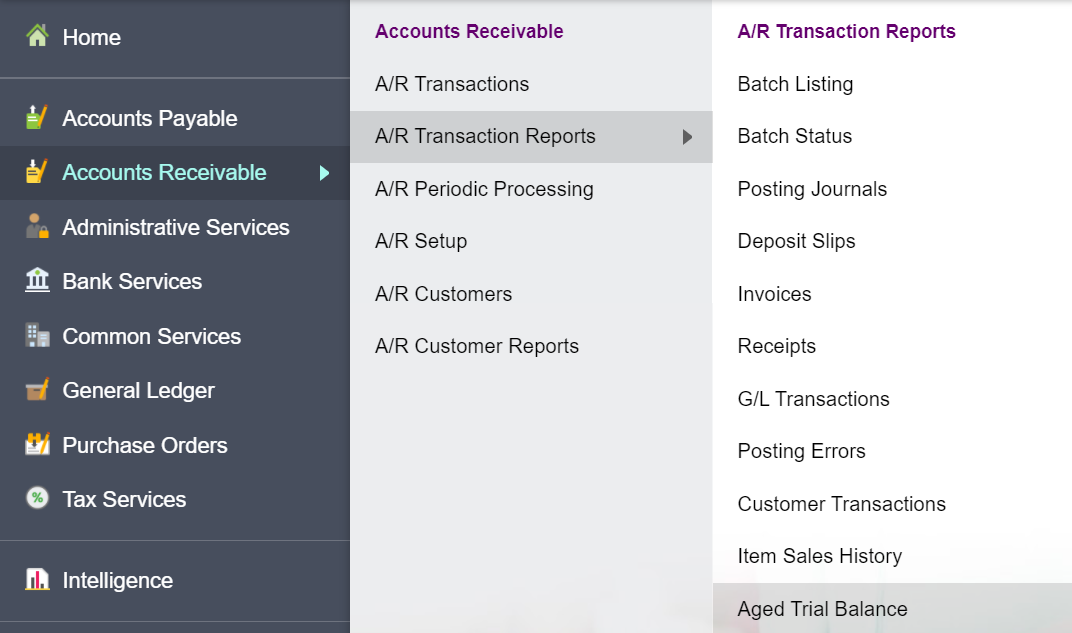
To run the Aged Trial Balance Report, visit Accounts Receivable > A/ R Transaction Reports > Aged Trial Balance area of Sage 300.
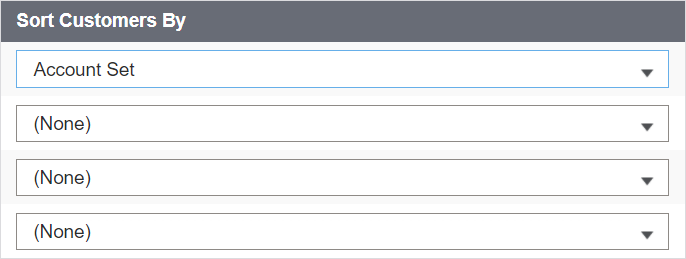
When running the report, you will be able to sort the customers by the account set.
Enter in other relevant criteria to search the report by and then press print to view the report.