To properly display this page you need a browser with JavaScript support.
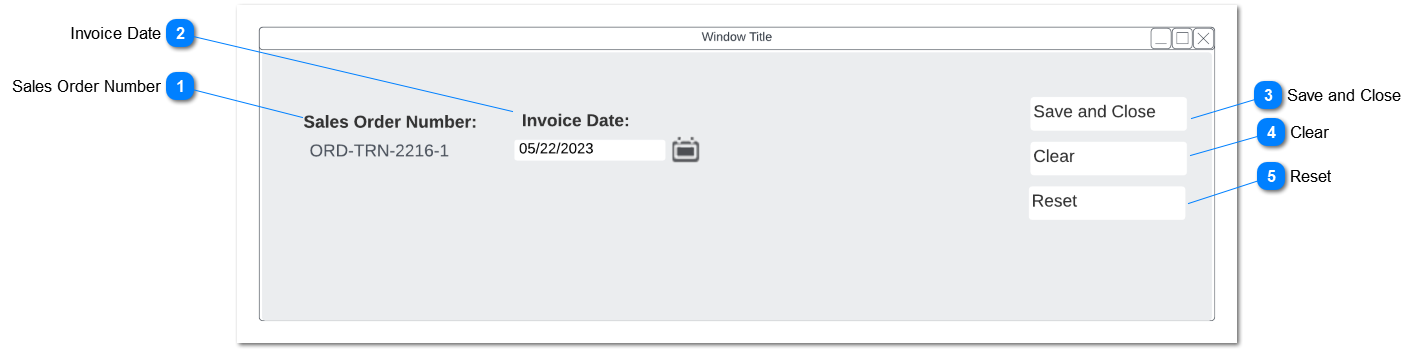
Sales Order: Edit Invoice/ Credit Note This pop-up window will appear once the user click on "Create Invoice" or "Create Credit Note" in sales order screen. It will only appear to users with access to change invoice date which will appear on the
User Details . Other rules will remain the same
Sales Order Number
Type
Notes
Rules
Compulsory
Placeholder
Format
Edit
Size
Default
Messages
Read Only
Display user the assigned Sales Order Number.
Display user the assigned Sales Order Number displayed in "Description" field in the Sales Order
-
-
-
N
-
-
-
Invoice Date
Type
Notes
Rules
Compulsory
Placeholder
Format
Edit
Size
Default
Messages
Date
Field will allow the user to select invoice/ Credit Note date based on editable date range.
System will only allow the user to select date within the editable date range based on Invoice/ Credit Date Edit Configuration.
Field Name will be renamed as "Credit Note Date" if the created document is a Credit Note.
User will be restricted to select outside the Invoice/ Credit Note edit date range.
-
-
-
Y
-
System Date
-
Save and Close
Type
Notes
Rules
Compulsory
Placeholder
Format
Edit
Size
Default
Messages
Action Button
Clicking the action button will initiate create Invoice / Create Credit Note function in Sage300 with Selected Invoice/ Credit Note Date
byondpro will initiate create Invoice / Create Credit Note function in Sage300 with Selected Invoice/ Credit Note Date.
Other functions in create Invoice / Create Credit Note will remain the same.
-
-
-
N
-
-
-
Clear
Type
Notes
Rules
Compulsory
Placeholder
Format
Edit
Size
Default
Messages
Action Button
Clicking the action button will clear the Invoice date field.
clear the Invoice date field.
-
-
-
N
-
-
-
Reset
Type
Notes
Rules
Compulsory
Placeholder
Format
Edit
Size
Default
Messages
Action Button
Clicking the action button will reset the Invoice date field to system date.
Reset the Invoice date field to system date.
-
-
-
N
-
-
-