This feature is designed to record a refund (negative receipt) against a Credit Note in byondpro.
This screen applies only for byondpro customers that are NOT integrated with Sage 300 or users of opuspay.
opuspay: refer to separate product specification
Sage 300: refunds are processed in Accounts Receivable the Refund Write-back is used to post the transaction back into byondpro
PREREQUISITES
Cemetery System Setup - following configuration applies:
UseOpusPay: N
and SageERPIntegrated: N
Sales Order Header - following conditions apply:
Document Type: Credit Note
and Status: Posted
If above prerequisites are met, show (new) button on Sales Order Header: Create Refund
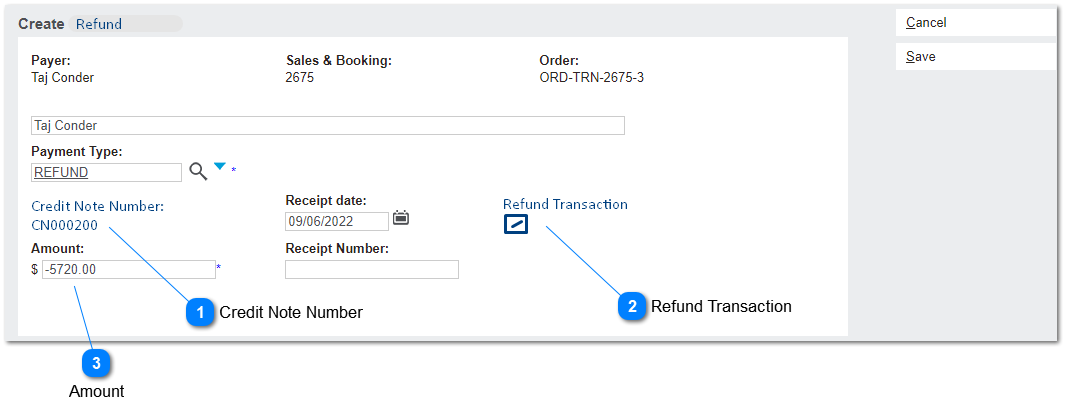
When CREATE REFUND button is selected, the screen below will open in a separate window.
Create Refund
This screen is used to process a refund (negative receipt) against a Credit Note in byondpro.
It uses the same principles as the existing Create Receipts screen and pre-populates the following values from the Order Header:
Payer
Sales & Booking
Order
Payer Name (editable text)
Payment Type: prefills with type REFUND
Receipt Date: prefills with TODAY's date (user can change to dates <= today)
Receipt Number: populated with next RC number when entry is saved.
The following values are described in detail below:
(1) Credit Note Number
(2) Refund Transaction
(3) Amount
 Credit Note Number
This is the document (credit note) number from the originating transaction.
|
Type
|
Notes
|
Rules
|
Compulsory
|
Format
|
Edit
|
Size
|
Default
|
Error Message
|
|
Text
|
|
1. Auto-insert document number from the originating Sales Order header.
|
Y
|
text
|
N
|
|
|
| |
|
 Refund Transaction
This indicates that the entry is a refund transaction for ease of reporting.
|
Type
|
Notes
|
Rules
|
Compulsory
|
Format
|
Edit
|
Size
|
Default
|
Error Message
|
|
checkbox
|
|
1. Auto-filled with value Y
|
Y
|
text
|
N
|
|
|
| |
|
 Amount
This the value of the refund transaction
|
Type
|
Notes
|
Rules
|
Compulsory
|
Format
|
Edit
|
Size
|
Default
|
Error Message
|
|
Currency
|
|
1. Auto-fills with Total Amount of the originating credit note
1a. this is the tax inclusive total.
2. User can edit the amount.
2a. Accepts amounts < $0
3. If amount entered is >= $0, disable SAVE button
|
Y
|
text
|
Y
|
|
|
| |
|