To properly display this page you need a browser with JavaScript support.
Cemetery/ Funeral Home
Type
Notes
Rules
Compulsory
Placeholder
Format
Edit
Size
Default
Messages
Read-only text
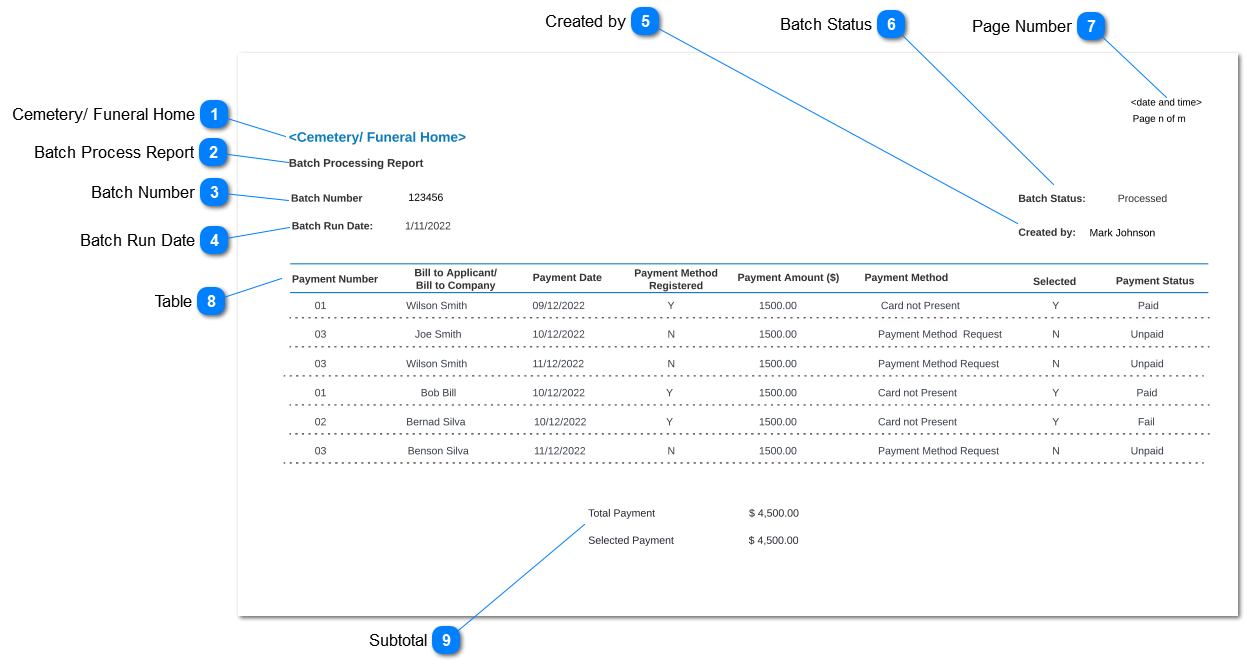
Display the respective funeral home/ cemetery name
-
-
-
-
-
-
-
-
Batch Process Report
Type
Notes
Rules
Compulsory
Placeholder
Format
Edit
Size
Default
Messages
Read-only text
Name of the report
-
-
-
-
-
-
-
-
Batch Number
Type
Notes
Rules
Compulsory
Placeholder
Format
Edit
Size
Default
Messages
Read-only text
-
-
-
Text
-
-
-
-
Batch Run Date
Type
Notes
Rules
Compulsory
Placeholder
Format
Edit
Size
Default
Messages
Read-only text
Display Batch Run Date
This is date at which particular batch number was executed for payment/ canceled
-
-
Text
-
-
-
-
Created by
Type
Notes
Rules
Compulsory
Placeholder
Format
Edit
Size
Default
Messages
Read Only
Display user name who process the payment
Display Login user name
-
-
-
-
-
-
-
Batch Status
Type
Notes
Rules
Compulsory
Placeholder
Format
Edit
Size
Default
Messages
Read Only
Display the status of batch based on processed/ canceled
Value of batch status will be as follows;
Processed - status changed to Processed if batch is executed.
Canceled - Status changed to canceled if the batch is canceled
-
-
-
-
-
-
-
Page Number
Type
Notes
Rules
Compulsory
Placeholder
Format
Edit
Size
Default
Messages
Read-only text
-
Display the page number and Date and Time report was generated from the system
-
-
-
-
-
-
-
Table
Type
Notes
Rules
Compulsory
Placeholder
Format
Edit
Size
Default
Messages
Read-only text
Display Payment Number
Display Repayment Number on Repayment Plan screen (Sales and Booking> Sales> Sales Order> Repayment Plan> Repayment Number)
-
-
-
-
-
-
-
Read-only text
Display Bill to Applicant/ Bill to Company
Display Bill to Applicant field on the Sales and Booking> Sales tab> Sales Order> Bill to Applicant
Display Bill to Company field on the Sales and Booking> Sales tab> Sales Order> Bill to Company
Read-only text
Display Payment Date
Display Repayment Date on Repayment Plan screen (Sales and Booking> Sales> Sales Order> Repayment Plan> Repayment Date)
Read-only text
Display Payment Method Registered
Display Payment Method Registered on Payment Detail Screen. (Sales and Booking> Sales Tab> Sale Order> Payment Details> Payment Method Registered)
Value will represent as follows;
Y - Customer has registered a payment method
N - Customer has not registered a payment method
Read-only text
Display Payment Amount
Display Repayment Amount on Repayment Plan screen. (Sales and Booking> Receipt Tab> Amount)
Read-only text
Display Payment Method
Display Payment Method on payment details screen. (Sales and Booking> Sales Tab> Sale Order> Payment Details> Payment Method)
Read-only text
Display Selected
Display if transaction is selected to process the transaction in the selected batch.
Read-only text
Display Payment Status
Display payment status from Repayment Plan (Sales and Booking> Sales Tab> Sale Order> Repayment Plan> Payment Status)
Subtotal
Type
Notes
Rules
Compulsory
Placeholder
Format
Edit
Size
Default
Messages
Read Only
Display Total Payment
This read only field display total value of payment outstanding listed as per selected "To Date".
-
-
-
-
-
-
-
Read Only
Display Selected Payment
This read only field display total value of selected payment outstanding from the listed payments.
-
-
-
-
-
-
-